

Appearance
Skills
A skill is a playbook you write once and call by name in chat: where Nomain should look, when it should stop, and what a good answer contains. When you call it, Nomain follows it instead of working out an approach from scratch.
Your administrators can write organization skills that everyone in your organization can use, and Nomain provides skills of its own. They sit next to yours and you call them the same way. When Nomain picks a skill on its own, it considers organization skills as well as yours. It does the same when a coding agent asks it a question.
Skills suit the questions you ask in the same shape again and again. If you triage an overnight batch failure the same way every time, write the approach down once as batch-failure-triage and stop re-explaining it.
Who sees which skill
Only you can see and call the skills you write. Everyone in your organization can read and call its organization skills, and only administrators can change them. Nomain skills are available to everyone. A skill is not the same as memory, which the assistant keeps about you on its own as you chat. It is also not a project skill, which lives in your code. Nomain Code in VS Code uses both.
Opening Skills
Open the user menu at the bottom-left of the app, choose Profile and settings, then select Skills under Assistant. Memory sits next to it.
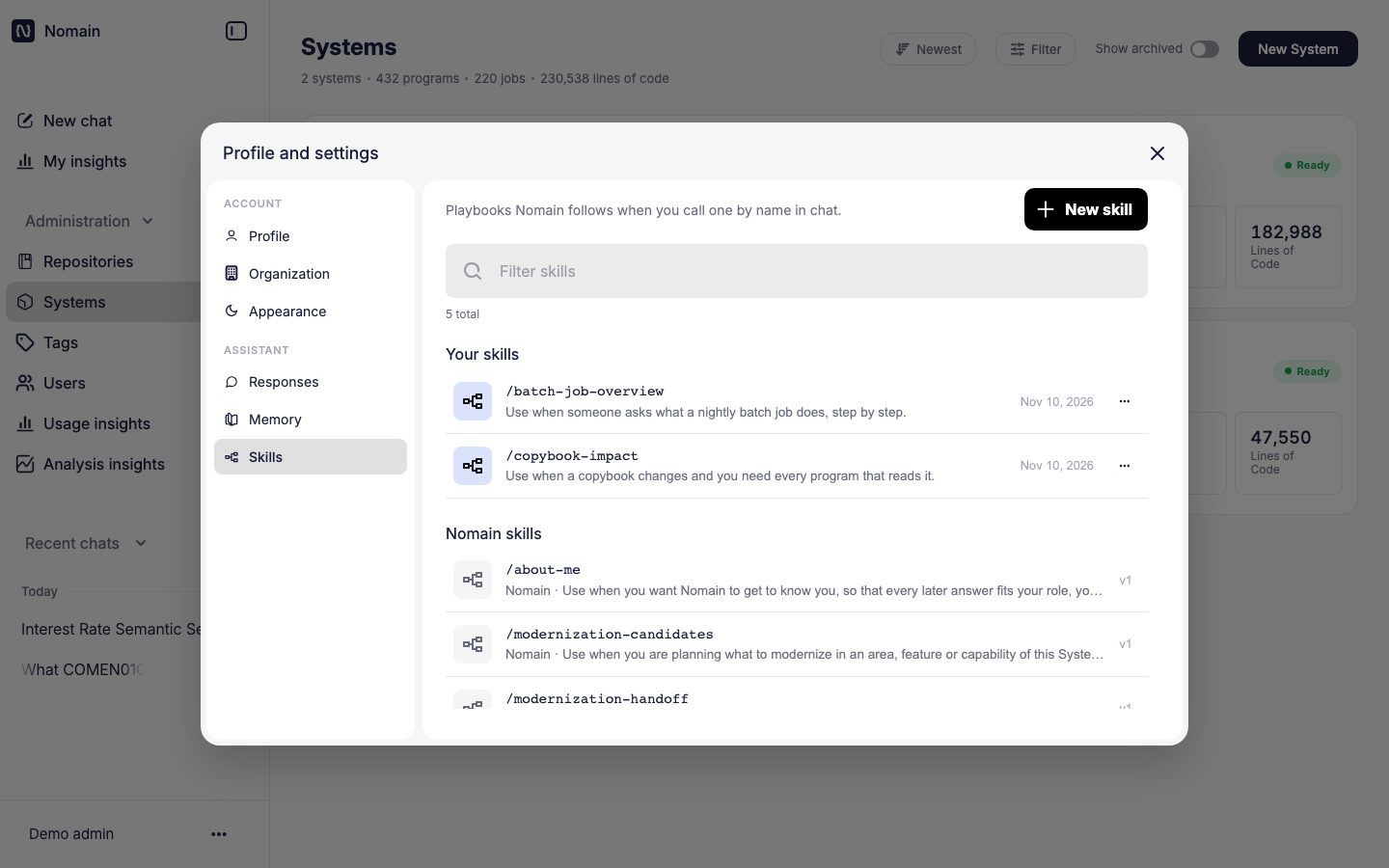
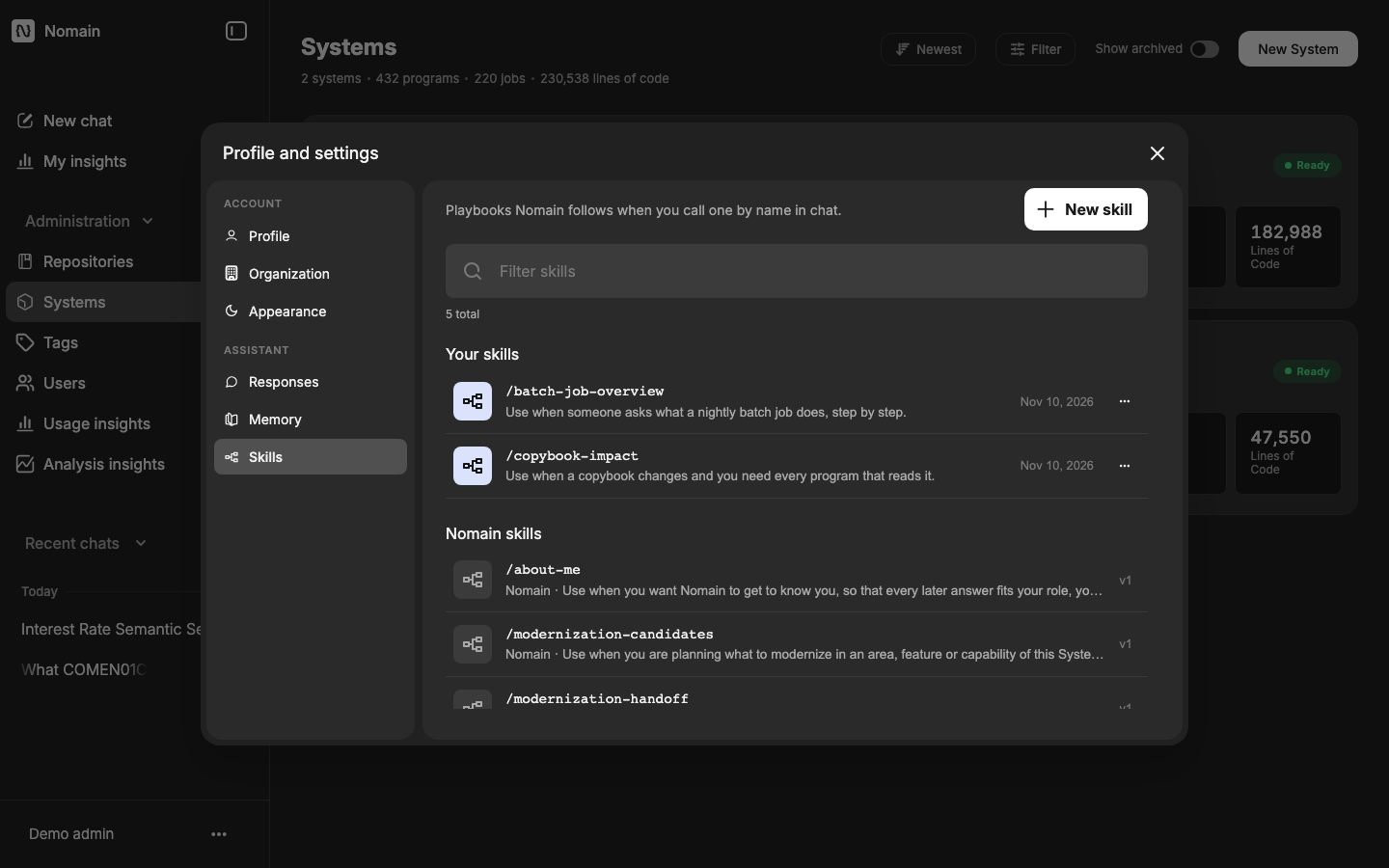
The screen is one list in up to three groups: Your skills, then your organization's skills, then Nomain skills. The organization's group carries its name, for example Acme Bank skills (Organization skills when the name is not available), and appears only when it has skills. Above the list, New skill starts a new skill, and Filter skills narrows every group by name or description. A count shows how many skills there are ("5 total", or "2 of 5" while you filter). If nothing matches, the screen says No skills match followed by what you typed, and a group with no match is hidden while you filter.
| Group | Each row shows | What you can do |
|---|---|---|
| Your skills | The skill's /name, its description and the date you last changed it. | Click the row to edit the skill. The ⋯ menu holds Delete, and for an administrator also Make organization skill. |
| Your organization's, for example Acme Bank skills | The /name, its description and the date it last changed. Administrators also see who wrote it, before the description: author · description. | Click the row to read the skill. Administrators edit it instead, and the ⋯ menu holds Delete. |
| Nomain skills | The /name, Nomain · followed by the description, and the skill's version, for example v1. | Click the row to read the skill. Nomain skills cannot be changed or deleted. |
If you have no skills of your own yet, Your skills shows No personal skills yet with a short explanation, and New skill writes the first one.
Skills with the same name
When two skills share a name, you see and call only one of them:
- Your own skill hides an organization skill or a Nomain skill with its name, for you only. Your row then says Hides the organization skill with the same name or Hides the Nomain skill with the same name.
- An organization skill hides a Nomain skill with its name. Its row says Hides the Nomain skill with the same name.
Rename or delete the skill that hides another, and the hidden one comes back.
Some names are not available:
- You cannot give a personal skill the name of an organization skill or a Nomain skill, whether you create it or rename it.
- An organization skill cannot take a Nomain skill's name, and two organization skills cannot share a name.
Writing a skill
Click New skill, or click one of your skills in the list to open it. For an administrator, New skill opens a menu: New personal skill or New organization skill. An organization skill opens in New organization skill, with the same fields.
| Field | What goes in it |
|---|---|
| Skill name | What you call it by in chat, after a slash. Lowercase letters, digits and single hyphens, for example batch-failure-triage. Up to 64 characters, with a count beside the label. |
| Description | When to use the skill. Up to 1,024 characters. |
| Designed for (Optional) | The system, language or environment the skill was written for, for example Systems containing JCL and COBOL. Up to 500 characters. Leave it empty if the skill works anywhere. |
| Instructions | The skill itself, in Markdown. Up to 20,000 characters. |
The editor warns you when a field goes over its limit.
Write the description as a situation, not a title: "Use when an overnight batch job has failed and you need the likely cause and its blast radius". It is what you pick the skill by later. If it looks short, the editor says so, but you can still save.
Save is enabled once the name, description and instructions are filled in and you have changed something. An empty starter section does not count as instructions: write under at least one. Cancel, or the close button (X) in the window's header, closes it without saving.
Preview and Markdown
Under the Instructions title, choose Preview or Markdown. Markdown shows the instructions as you write them. Preview shows them formatted: headings, lists, bold and italic, inline code, code blocks, quotes, tables and links. A line break you type stays a line break. Empty instructions show Nothing to preview yet.
A new skill opens on Markdown. An existing skill opens on Preview. You write and change the instructions only in Markdown. Switching keeps your cursor position and your undo history, you can save from either one, and a problem with the instructions, such as going over the limit, shows under them in both.
HTML tags you type are shown as the text you typed, never applied. Images hosted on another site are not loaded in Preview. A link opens in a new browser tab, so following it never closes the window or loses your unsaved changes.
The recommended sections
In Markdown, six section buttons sit above the text. Recommended sections · N of 6 added counts the ones your instructions already have, and their buttons are shown filled. Click one to add it, click an empty one again to remove it, and point at one to see what belongs in it. The buttons are also shown in Preview, and clicking one there switches to Markdown and then does the same. A new skill starts with Investigation plan, Stop condition, Output shape and Definition of good.
| Section | What belongs in it |
|---|---|
| Triggers | The situations the skill is for. |
| Inputs | What the skill needs to start, whether each input is required, and what to do when one is missing. One line per input, such as - **Job name**: required, ask if absent. The / list in chat shows these input names after the skill's name. |
| Investigation plan | Where to look, in order. |
| Stop condition | What ends the search, and what not to explore once the question is settled. |
| Output shape | How the answer is organized: what to lead with, how long it runs, how much detail it gives. |
| Definition of good | What the answer must name, cite or show to count. |
The sections are optional. A skill without them works the same.
Calling a skill in chat
A skill works as soon as you save it. The confirmation shows how to call it: "Skill saved. Use it in chat with /batch-failure-triage".
In chat, write the name with a slash in front. It can start the message (/batch-failure-triage JOB4711 failed last night), sit inside it (Have a look at JOB4711 with /batch-failure-triage please), or be the whole message.
To pick from a list, type /. Your skills, your organization's skills and the Nomain skills appear with their descriptions, wherever your cursor is in the message. At the start of a message the list also offers the built-in /search and /feedback commands. Type more to narrow the list. It matches the start of any word in a name, so /onboar finds /system-onboarding, and lists the names that start with what you typed first. The arrow keys move the highlight while your cursor stays in the message box. Press Tab or Enter to fill in the highlighted row, or click a row. Escape closes the list, and Enter then sends your message as typed. The list opens again when you move to another / word, or press the down arrow.
A skill's row also shows what to write after its name, in lighter text: /batch-failure-triage job name, date (optional). It comes from the skill's Inputs section. Each list line with the input's name in bold, a colon and then required or optional adds its name, as in - **Job name**: required, … or * **Date:** optional, …. An optional input is marked (optional), and lines in any other shape are not shown. When a skill has more inputs than fit, the row ends in …. A skill without an Inputs section, or with - none under it, shows only its name. Picking a row fills in only the name, so what you write after it is up to you. If a skill has such lines but its row shows nothing after its name, they appear once someone who can edit the skill changes and saves it: you for your own skills, an administrator for your organization's.
A tag on the right of each row says what it is: COMMAND for a built-in command, SKILL for a skill you wrote, ORGANIZATION SKILL for one of your organization's skills, and NOMAIN SKILL for a skill Nomain provides, the ones in the Nomain skills group of Skills.
Good to know:
- Names match exactly. Nomain calls only the skill whose name you wrote, never a close match. If no skill has that name, your message is answered as an ordinary question.
- Slashes in pasted text are safe. Slashes in JCL, file paths, URLs,
read/writeor a date never call a skill. - Your message shows what it called. Once you send it, each skill your message called is highlighted in it. When you reopen a chat, the highlights show the skills that ran at the time, even if one has since been renamed or deleted.
- Point at a called skill or command to see what it does. Its current description opens beside it, also on older messages. Click or tap it to keep it open, and click again, click elsewhere or press Escape to close it. With the keyboard, Tab to it. A skill since renamed or deleted shows This skill is no longer available., and if your skills could not be loaded, The description couldn't be loaded.
- A skill applies to one message. A follow-up question is answered without it, so call it again if you still want it.
Recording what you know about a System
/system-onboarding is a Nomain skill for someone who knows a System well. Call it in a chat on that System to record what its code does not say. In a chat without a System it says it must be run on a System and keeps nothing.
- Read the notice. The first answer opens with: "Before you start. What you answer here is stored as confirmed knowledge about the System's name*. Every chat on this System, by anyone, will draw on it. Answer only what you know to be true, and skip anything you are unsure of."*
- Give your name. Nomain shows what is already recorded, then asks for your name as it should appear on the notes.
- Answer up to eight questions. Each can be skipped, and Nomain does not expect complete lists. They ask: what the System is for and for whom; which programs do the main processing and what role each has; which processing cycles run, why each exists and which jobs or transactions start them; which other systems, on or off the mainframe, send or receive data, what and why, through which files, queues or tables; which teams own it or depend on it; which data matters most, its record types, and where it lives; where the truth lives (documentation, people, code) and whether comments in the code can be trusted; and what catches newcomers out. Reply in the chat, or give your answers with the call; you do not need to call the skill again.
- Read the check. Nomain checks the programs, jobs, files, tables and queues you named against the System, and reports for each whether it was found, not found, or differs from what the System shows. A system you name that is not part of this System is compared with the other Systems you can use: Nomain says whether it is one of them and whether a link between the two is already known. When the name is unclear it offers up to three likely Systems. A name that is not among your Systems may be a system outside Nomain, or one not shared with you, so Nomain asks about it. It asks at most three follow-up questions beyond the points that need resolving.
- Resolve what differs. A point that differs from the System is not kept until you resolve it.
Nomain files each answer as a note under the System memory section it belongs to, for example a core program under Architecture and a neighbouring system under Landscape. A pitfall goes where its content belongs. Each note's summary states the fact itself. A note keeps apart what the System's code confirmed (Confirmed in the code:) from what only you said (According to your name*😗). Notes are shared with everyone who works on the System. Nothing is kept for a question you skipped.
Run the skill again to see what it recorded, correct it or add to it: it updates the notes on the same topic instead of adding new ones. If a note on the topic was written by someone else and says something different, Nomain shows both and asks whether to replace it, keep it or keep both. It changes nothing until you answer.
In any chat on a System, when an answer meets data going to or coming from something outside the System and nothing recorded says what it is, Nomain asks what it is and offers to keep your answer as a shared note about the System.
Skills in coding agents
Nomain also follows the skills on your Skills screen when a coding agent asks it a question: a tool connected to Nomain, such as GitHub Copilot, Claude or Devin, and Nomain Code in VS Code when it asks Nomain about your System. There is nothing to turn on, and nothing changes in how the tool is connected.
- Nomain Code uses both kinds of skill. It keeps following the project skills in your repository as it works, and when it asks Nomain about your System, Nomain follows the skills on your Skills screen. A connected tool likewise keeps any skills of its own.
- Nomain chooses the skills when you name none. It follows the ones that fit the question, as it does in chat when you call none by name. The answer it returns to the tool names each skill it followed.
- A connected tool can call a skill by name. Tell the tool which skill to use, for example "ask Nomain with the batch-failure-triage skill". The tool passes the name along with the question, as writing
/batch-failure-triagedoes in chat, whether or not the question names a System. Nomain follows that skill and the answer names it. It may still follow other skills that fit, as in chat. - Give the name yourself. A connected tool cannot list your skills. The name is on your Skills screen, and a slash in front or a difference in letter case does not matter.
- A name that matches no skill is not an error. If the name is mistyped, or is not a skill you can call in chat, the question is answered as an ordinary one and Nomain chooses the skills that fit.
- Nomain Code cannot call one by name. It cannot call a specific skill from your Skills screen, as writing
/batch-failure-triagedoes in chat. - The same skills as in chat. Nomain uses only the skills you can call in chat: your own, your organization's and Nomain's. It never uses another person's own skills.
- A skill does not widen what you can see. It shapes how Nomain looks into the question and answers it, and Nomain still reads only what your account can reach. The answer is still written for the coding agent: concise and backed by evidence from the code.
Editing and deleting
- Edit: open one of your skills in Edit skill, make your change, and click Save. Cancel or X closes it without saving.
- Delete: open the ⋯ menu on the row, choose Delete and confirm Delete this skill?. The skill stops being available in chat.
Deleting cannot be undone
A skill keeps no earlier versions. If you are unsure, copy the instructions somewhere before you confirm.
Nomain skills are read-only. To change the approach one of them takes, write your own skill with its own name.
Reading a skill you cannot change
A Nomain skill opens in Nomain skill, and an organization skill opens in Organization skill for anyone who is not an administrator. The window shows the skill's name and description, then Designed for and Created by when they are known, then the instructions, opening on Preview. Markdown shows them as text you can read and select, not edit. Created by shows Nomain on a Nomain skill and is not shown on an organization skill. Close closes the window.
Organization skills
An organization skill is written once by an administrator and is there for everyone in your organization, so nobody has to keep their own copy. Everyone else can click it to read it, in Organization skill, but cannot change it.
Administrators manage them from the list:
- Edit: click the row to open the skill in Edit organization skill, make your change, and click Save.
- Delete: open the ⋯ menu on the row, choose Delete and confirm Delete this organization skill?. The skill disappears for everyone in your organization, and its name is free to use again. This cannot be undone.
Sharing one of your skills
An administrator can turn one of their own skills into an organization skill:
- Open the ⋯ menu on the skill's row under Your skills.
- Choose Make organization skill.
- Confirm Make this an organization skill?.
The skill moves from Your skills to your organization's group. Everyone in your organization can then see and use it, and only administrators can edit it. It cannot be turned back into a personal skill. Only your own skills can be shared this way.
Related
- Chat with your system: where you call a skill.
- Ask Nomain from other tools: connecting a coding agent, whose questions Nomain answers with your skills.
- System memory: where the notes
/system-onboardingrecords are reviewed. - Agent memory: what the assistant remembers about you across chats.
- Project skills: playbooks that live in your code, for Nomain Code in VS Code.