

Appearance
Domains, areas & processes
Nomain does not only map your code. It also reconstructs the business processes your systems carry out, so you can see what the software does in business terms, not just how it is wired.
When Nomain finds process documentation inside a System (for example, a file describing how a loan application or a card transaction is handled), it reads that document and turns it into a visual, step-by-step process diagram. Related processes are grouped into functional areas, and areas are grouped into higher-level business domains. The result is a business hierarchy that sits alongside the raw code view of the same System.
Preview feature
Business processes are inferred automatically from documents, so this view is marked a preview and the list may be incomplete. Treat it as a strong starting map, not an exhaustive catalogue.
The business hierarchy
   Business Domain            e.g. "Customer Identity & Access"   (L1.x)
     └─ Area                  e.g. "Card Transaction Processing"
         └─ Business Process  e.g. "Handle a loan application"    (a diagram)
└─ Code the programs and jobs behind it| Level | What it is |
|---|---|
| Business domain | A broad functional grouping such as Customer Identity & Access. On a System card it appears as a chip labelled L1.1, L1.2, and so on. |
| Area | A named grouping of related processes inside a domain, such as Account Management. |
| Business process | A single end-to-end workflow, reconstructed from a process document and drawn as a step-by-step diagram. |
| Lane | A role, department, or system responsible for part of a process (for example, Underwriter or Core Banking). Each step belongs to a lane. |
Reading a process diagram
Open a System and use the view switcher at the top to toggle between Business Process and Code Graph. The Business Process view opens on an Overview that lists the System's domains with summary counts and a status breakdown: Total, Active, Under Review, Migrating.
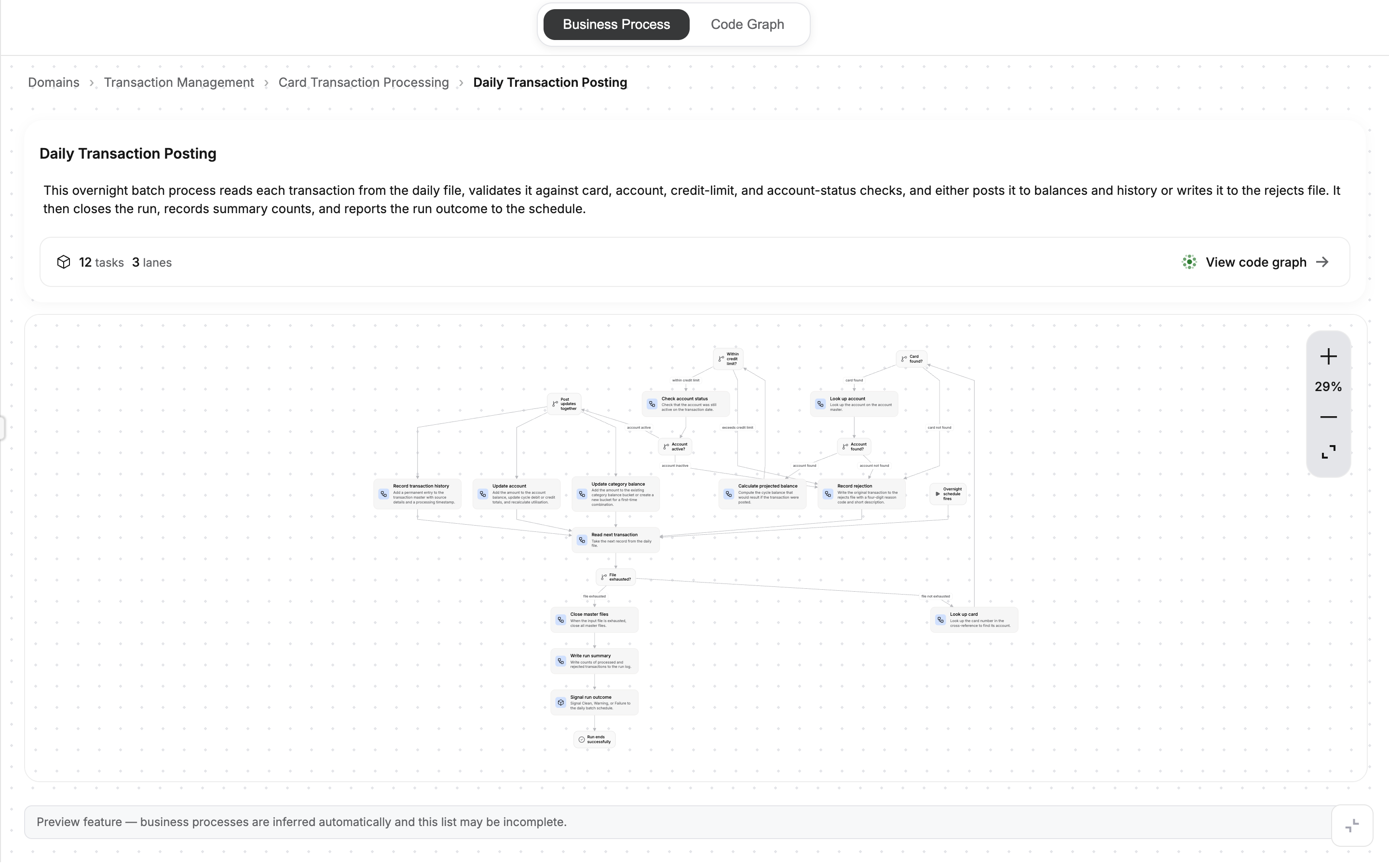
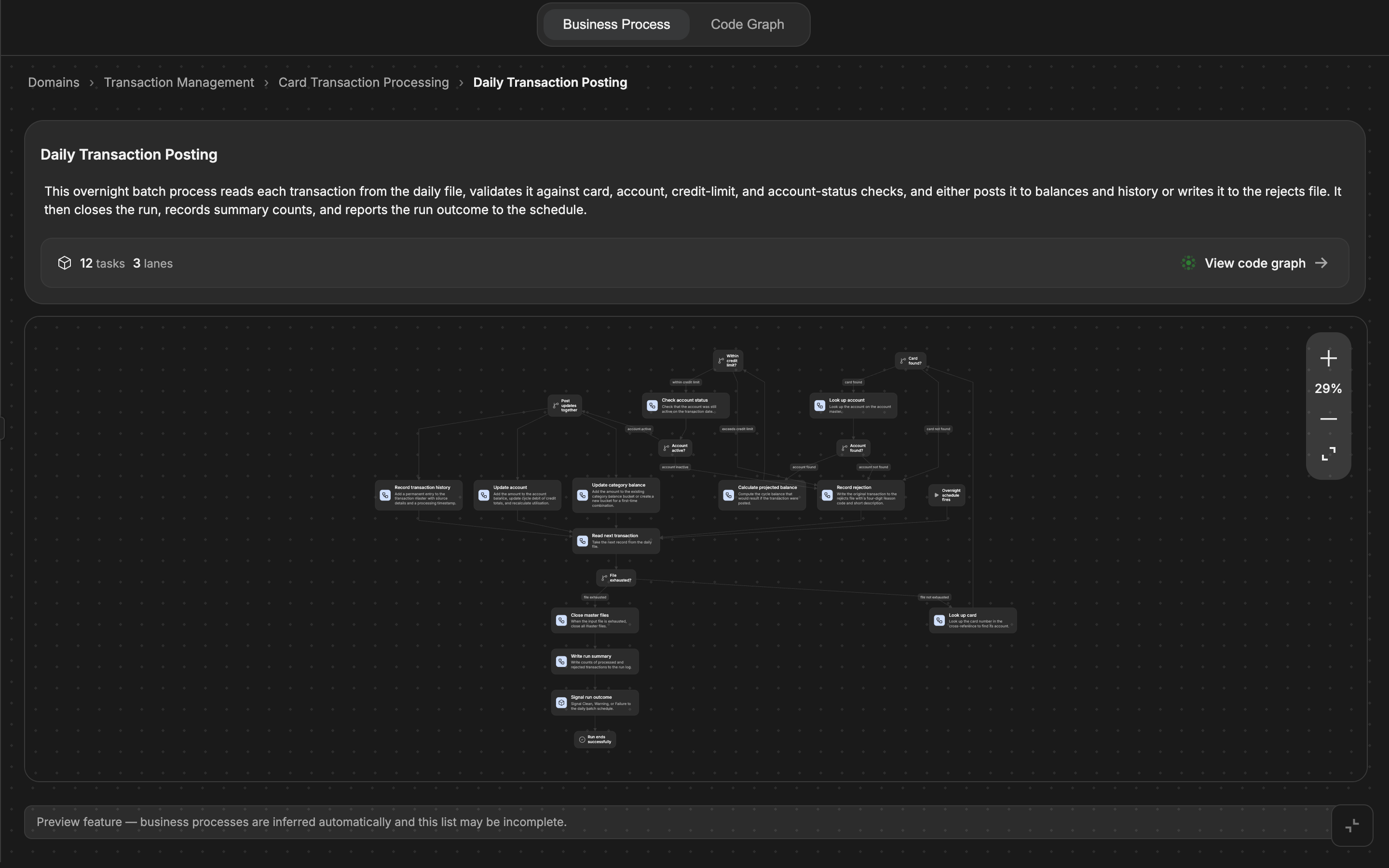
From there you drill down through the hierarchy, using the breadcrumb trail (Domains › Areas › Processes › process name) to jump back to any level:
- Click a domain to see its areas.
- Click an area to see its processes.
- Click a process to open its full diagram.
A process is drawn with clear building blocks:
- Tasks are the work steps, shown as cards. Steps done by a person and steps done automatically are distinguished by icon.
- Events are start, end, and waiting points, shown as pills.
- Gateways are decision points where the flow branches, with labelled arrows showing which condition leads where.
You can pan and zoom the diagram with the on-screen controls (zoom in, zoom out, fit-to-view, with the current zoom percentage shown). From a process's header you can read its description and step/lane counts, and click View code graph to jump straight to the underlying code.
How business processes are found
A document is treated as describing a business process based on its file name. Nomain recognizes the naming convention when the file name contains business_process, businessprocess, or business-process. For example:
order-business-process.md
business_process_billing.md
Once a document is classified this way, Nomain reads its text and extracts a validated process model (lanes, tasks, events, gateways). Every extracted element is backed by evidence pointing to a span of the source document, which guards against invented steps.
Migration status
Processes and domains can carry a migration status (Active, Under Review, or Migrating) and a channel (for example, Online - Real-time). A domain's status rolls up from its processes, so you can see at a glance which parts of the business are being modernized.
Related
- Systems is the model these processes belong to.
- Document management covers how process documents get into a System.
- The System map is the code-level view of the same System.
- Chat lets you ask questions about a process in plain language.