

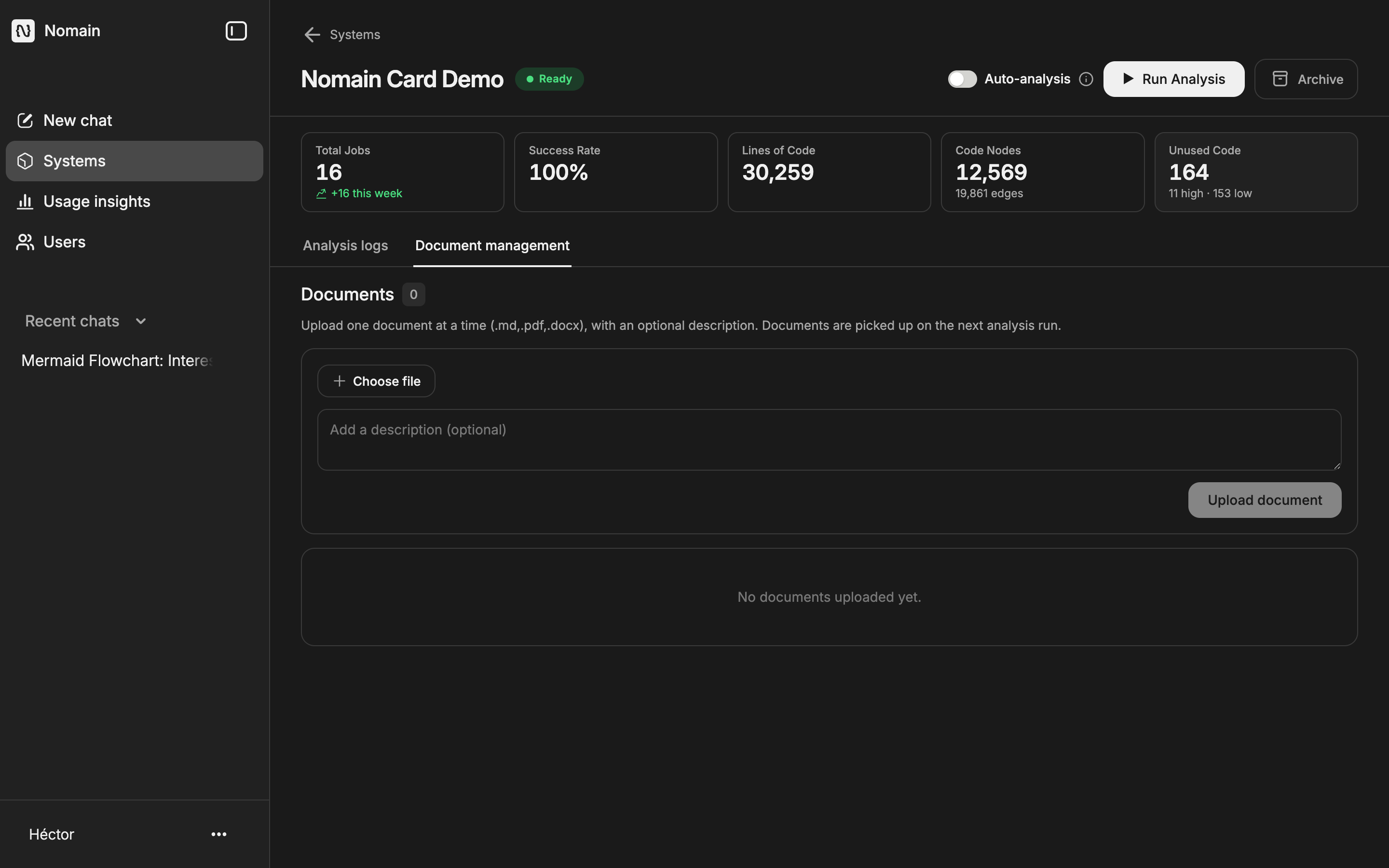
Appearance
Document management
Admin only
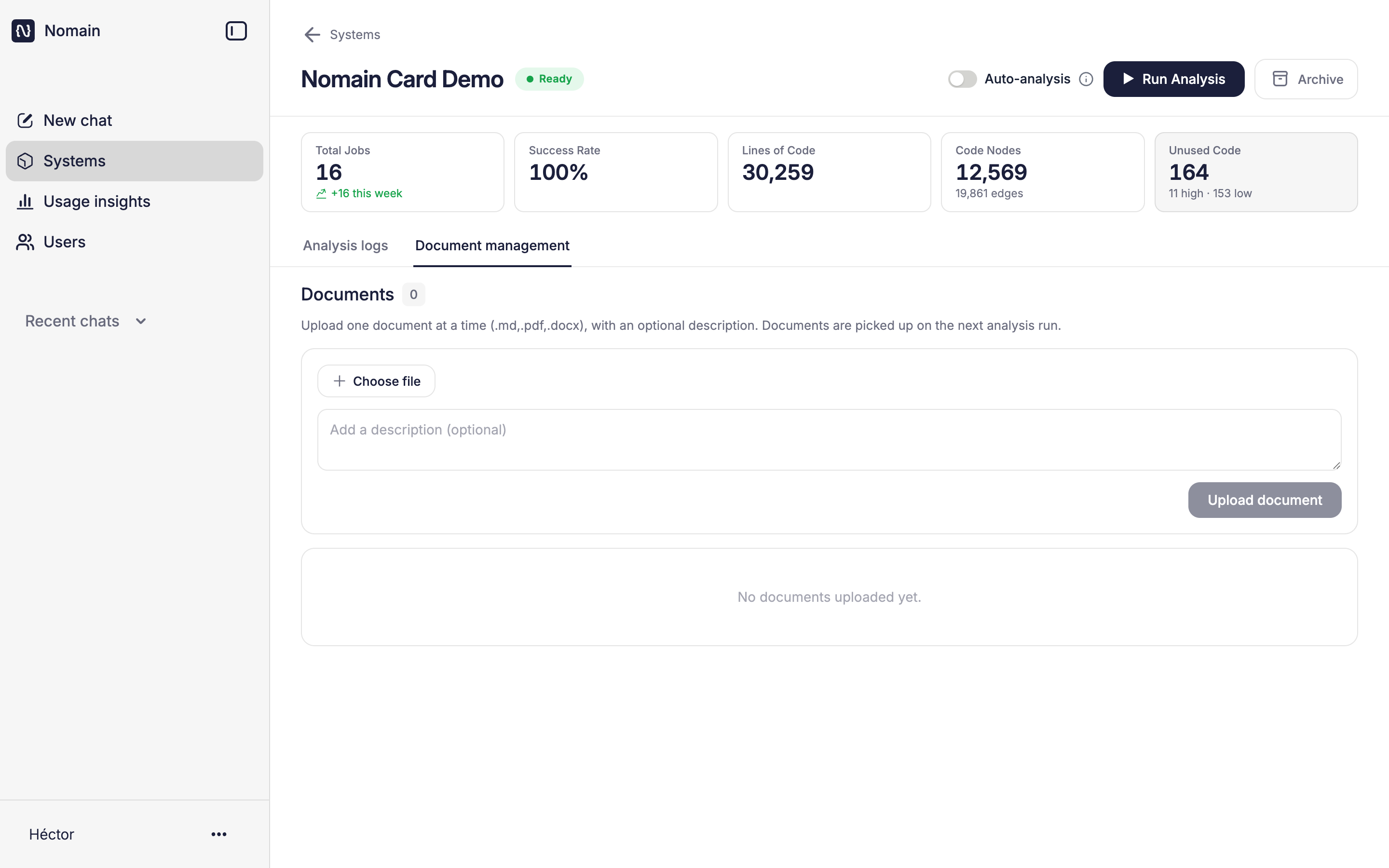
Document management lets a tenant administrator attach supporting documents to a System so Nomain reads them alongside the code. Upload design notes, specifications, runbooks, or business documentation, and Nomain folds their content into the System the next time it is analyzed. From then on, the chat assistant can search and quote them just as it does the code.
Each System has its own Document management tab (visible only to administrators) on its detail page.
Uploading a document
- Open a System and select the Document management tab.
- Click Choose file and pick a single file. Once selected, the button changes to Replace file, and the file shows as a chip with its name and size.
- Optionally type a note in the Add a description (optional) box.
- Click Upload document. On success you see "Document uploaded. It will be included in the next analysis."
Supported files
| Type | Extension | Limits |
|---|---|---|
| Markdown | .md | 25 MB per file |
.pdf | 25 MB per file | |
| Word | .docx | 25 MB per file |
- Upload one file at a time.
- File names must be unique within a System. Uploading a duplicate name fails with "A document with this file name already exists. Delete it first or rename the file."
- Unsupported types are rejected ("Allowed: .md, .pdf, .docx"), as are files over 25 MB.
Viewing and removing documents
Attached documents appear in a list (newest first), each row showing an icon, file name, description, size, and upload date. To remove one, click its delete icon. A Delete document? confirmation appears explaining that the file will be removed from the System and no longer included in analysis. Confirm with Delete ("Document removed.").
How documents become searchable
Documents are read on the next analysis, not at upload
Uploading stores the document with the System but does not read it immediately. It is picked up on the next analysis run, after which its content is summarized and indexed so the chat assistant can find relevant passages and cite them.
Behind the scenes, each type is read appropriately: Markdown as text; PDF as text plus a rendered image per page (born-digital PDFs, up to a maximum number of pages); Word as text plus any embedded images. Very long documents may have their text truncated.
Trigger analysis to make new documents live
After uploading, run Re-analyze on the System so the new documents are read in and become searchable by the assistant.
Related
- Running system analysis: how uploaded documents get ingested.
- Chat: the assistant that searches and quotes your documents.
- Business processes: process documents also drive the business-process view.