
Appearance
Chat with your system
Chat is where you ask questions in plain language about one of your Systems and get an answer grounded in that System's actual code, jobs, copybooks and documents.
Behind each answer is an AI agent that searches the System for you. It looks through the code structure and its explanations, matches identifiers, searches for patterns, and searches your ingested documents by meaning. Answers are written in Markdown, include clickable references to specific parts of the System, and stream in as they are generated.
Starting a conversation
- Click New chat in the sidebar, or open Chat with no conversation selected.
- Pick which System to ask about: click the System selector in the header and choose one. If your account has exactly one System, it is pre-selected.
- Type your question in the message box ("Ask a question or type / for commands") and press Enter or the send icon.
Your message echoes instantly, and a shimmering status line shows what the agent is doing as it works, for example Analyzing query…, Searching…, then Generating answer…. The answer then streams in as it is written.
One System per conversation
Each chat is scoped to a single System. Once a chat exists, its System is fixed and shown as a button in the header. To ask about a different System, start a new chat. If you try to send without picking one, a hint reminds you: "Please select a system first."
Reading an answer and its evidence
Answers render as formatted text and can include:
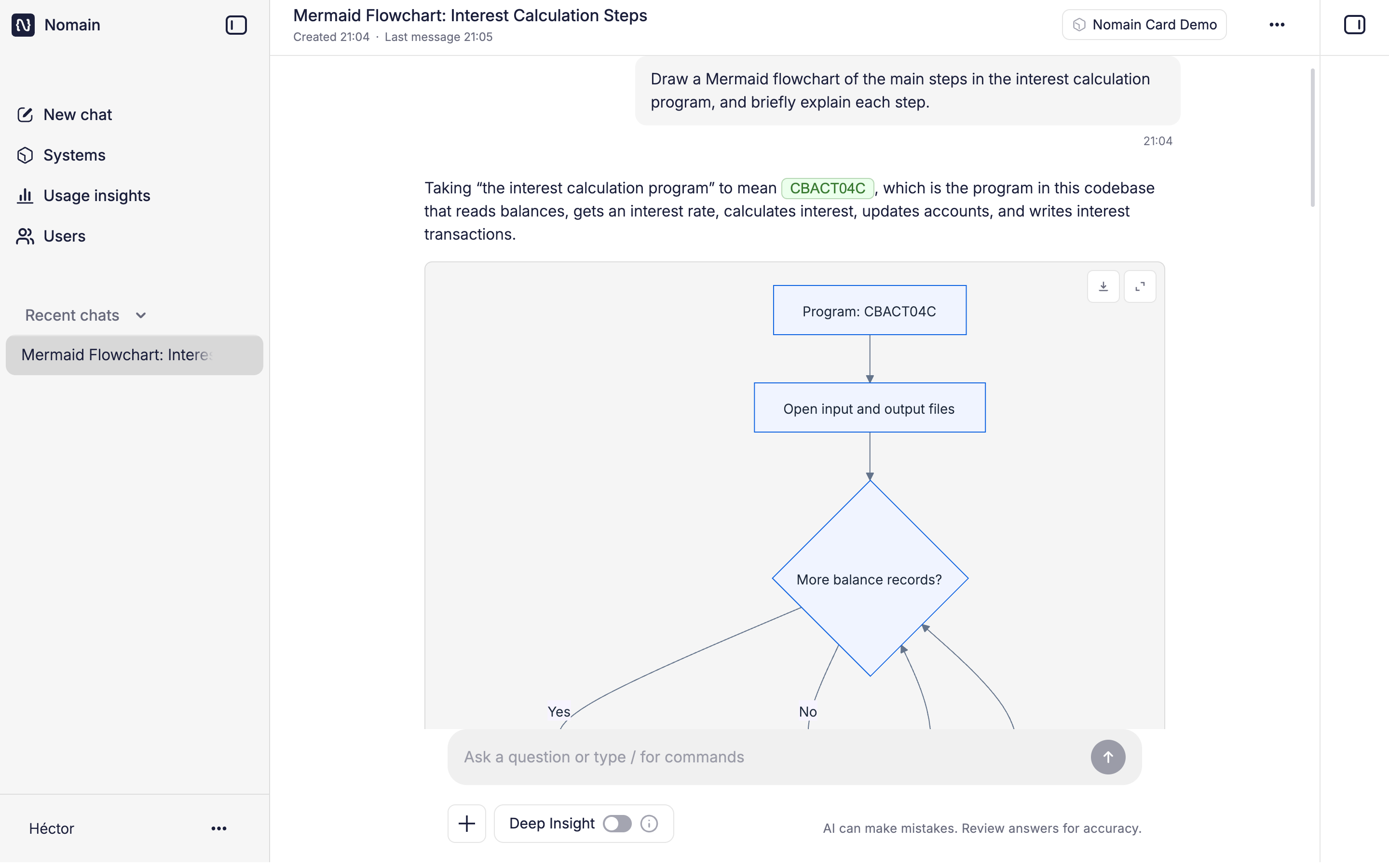
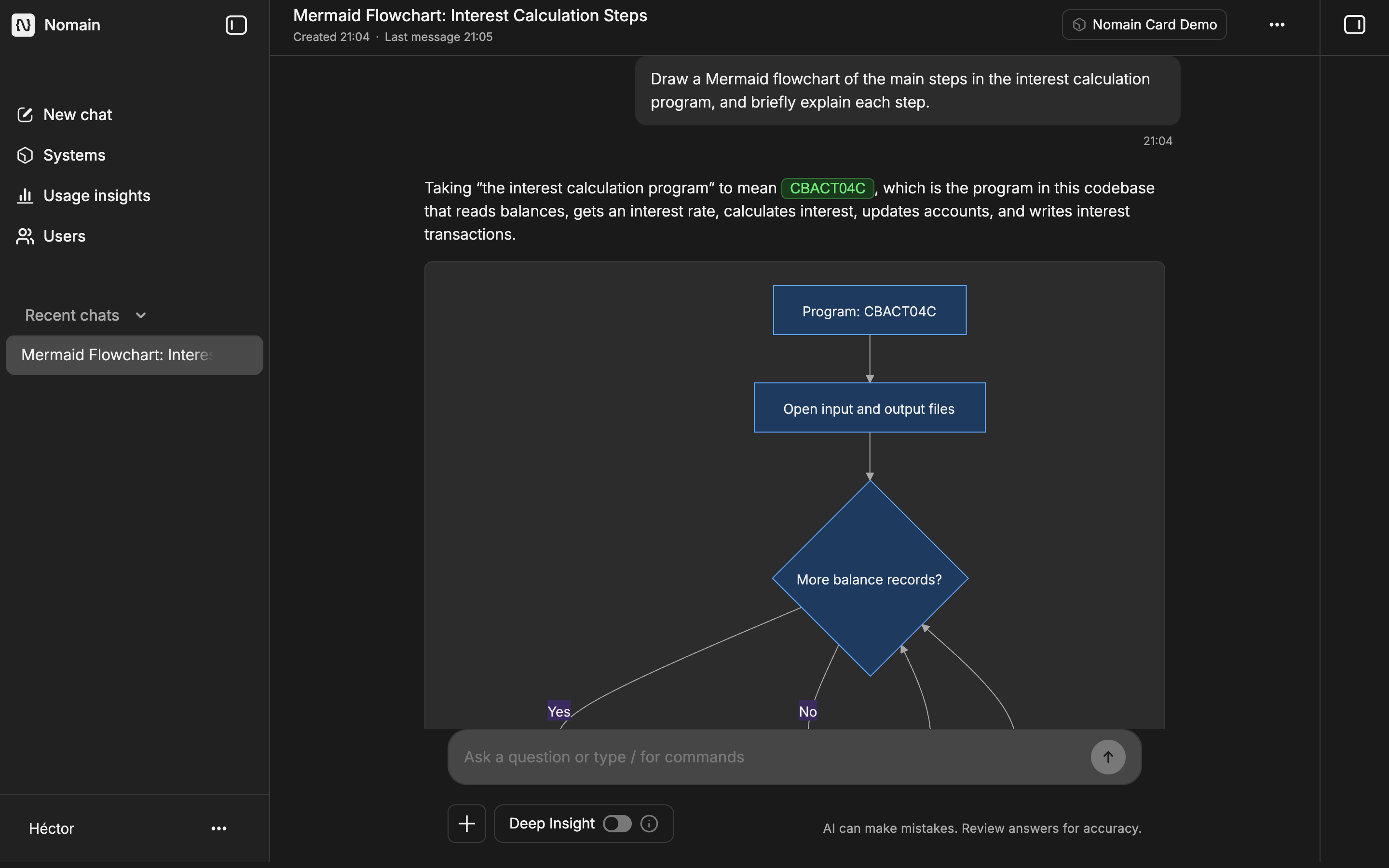
- Inline references to entities in the System (a program, paragraph, file, and so on). Click a reference, or Highlight related nodes, to light up the relevant parts on the System map.
- Diagrams. The assistant can render Mermaid diagrams inline, not just text.
- A glossary. When the agent searches your documents, it returns the matching passages plus a single, de-duplicated glossary of terms, so overlapping terminology appears once.
Each answer shows how long it took ("Answered in …") and a timestamp. An answer toolbar offers Highlight related nodes, Copy, Like, and Dislike.
Deep Insight
For harder questions, turn on the Deep Insight toggle before sending. It "allows the agent to take more time to explore complex problems and questions." Answers produced this way are marked with a Deep Insights badge. Leave it off for quicker, everyday questions.
Attaching files
When enabled, the + button lets you attach a PDF or image (.pdf, .png, .jpg, .webp, .gif) as extra context for your question. Attached files show as chips on your message.
Continuing and steering the conversation
- Suggested follow-ups. Under the latest answer, Nomain offers a few short, answer-specific follow-up questions. Click one to ask it immediately. A brand-new chat shows starter suggestions drawn from the selected System.
- Stop an answer. While the agent is working, the send icon becomes a stop control. Clicking it interrupts the answer, which is then labeled Interrupted.
Answers that survive interruptions
Chat is designed to be resilient. An answer that is still being generated is picked back up if you:
- switch browser tabs or refresh the page,
- experience a brief network interruption,
- move between the web app and the VS Code extension mid-answer, or
- happen to be online during one of our deployments.
The same live answer stays in sync across the web app and the editor, so a conversation open in both places does not fall out of step.
Slash commands
Type / in the message box to open the command menu. Two commands are available:
| Command | What it does |
|---|---|
/search <term> | Runs a direct fuzzy + semantic lookup of entities in the System and returns a results table with links, instead of a full written answer. |
/feedback <message> | Sends feedback to the Nomain team. The type is auto-detected, or you can be explicit with an alias. |
The /feedback command has shortcut aliases:
/feedback:bug: report a problem/feedback:request: request a feature or improvement/feedback:love: tell us what you love
If you use /feedback without an alias, Nomain classifies the type for you automatically.
Rating an answer
Use Like or Dislike on any answer to tell us how it did. A short popover asks why:
- Dislike ("What went wrong?"): pick Incomplete, Inaccurate, Hallucination, Off-topic, or Other.
- Like ("What did you like?"): pick Helpful, Accurate, Clear, or Other.
Choosing Other opens a free-text box so you can add details.
Managing your chats
Your chats are saved and titled automatically from your first message. In the sidebar, Recent chats groups conversations by time: today's chats sit at the top with no label, then Earlier this week, Earlier this month, and Older. Pinned chats appears above when you have pinned any, and View more reveals the rest.
Each chat has a menu with:
- Pin / Unpin: keep an important conversation at the top.
- Rename: give the chat a clearer title.
- Delete: remove the conversation (a "Delete chat?" confirmation appears first).
- Export as PDF: save the conversation as a PDF.
The Systems panel
Once a System is selected, a panel on the side visualizes it. It stays hidden until you pick a System, keeping the focus on the chat. From it you can switch between the business-process view and the code graph, and answer references can highlight nodes directly in it. See Graph visualization and Business processes.
Archived Systems are read-only
If a System has been archived, you can still read its chats but cannot send new messages: "This system has been archived. You can read this chat but cannot send new messages."
Review AI answers
Nomain shows this reminder in every conversation: "AI can make mistakes. Review answers for accuracy." Answers cite their evidence so you can verify them against the real code.