

Appearance
Systems
A System is Nomain's structured model of one of your software systems, built automatically from its source code, JCL jobs, copybooks, and any documents you attach. It is the central object in Nomain. You browse Systems, open one to explore it, read its business processes, and chat with it.
Formerly "Knowledge Graph"
The concept now called a System used to be called a Knowledge Graph. The name changed to describe what you actually work with, a model of a complete system, and to remove a piece of jargon. Some web addresses still contain /graphs.
The Systems dashboard
The Systems page (opened from the left sidebar) lists all of your Systems as cards. A header at the top shows running totals for the Systems currently listed: number of systems, business processes, programs, jobs, and lines of code. You can sort the list by newest, name, lines of code, status, or last analyzed, and filter it by status; the filter offers only the statuses present in the list.
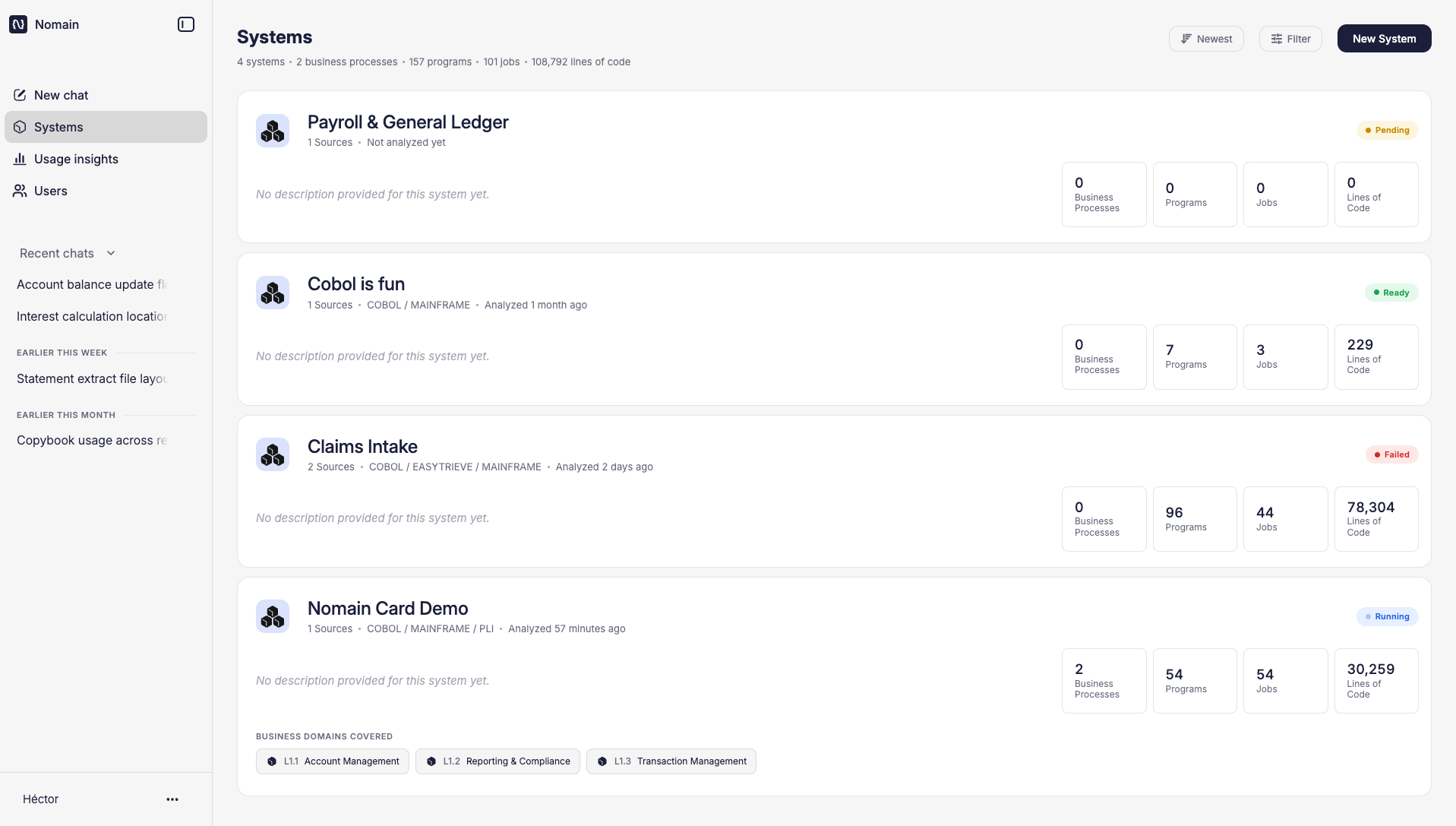
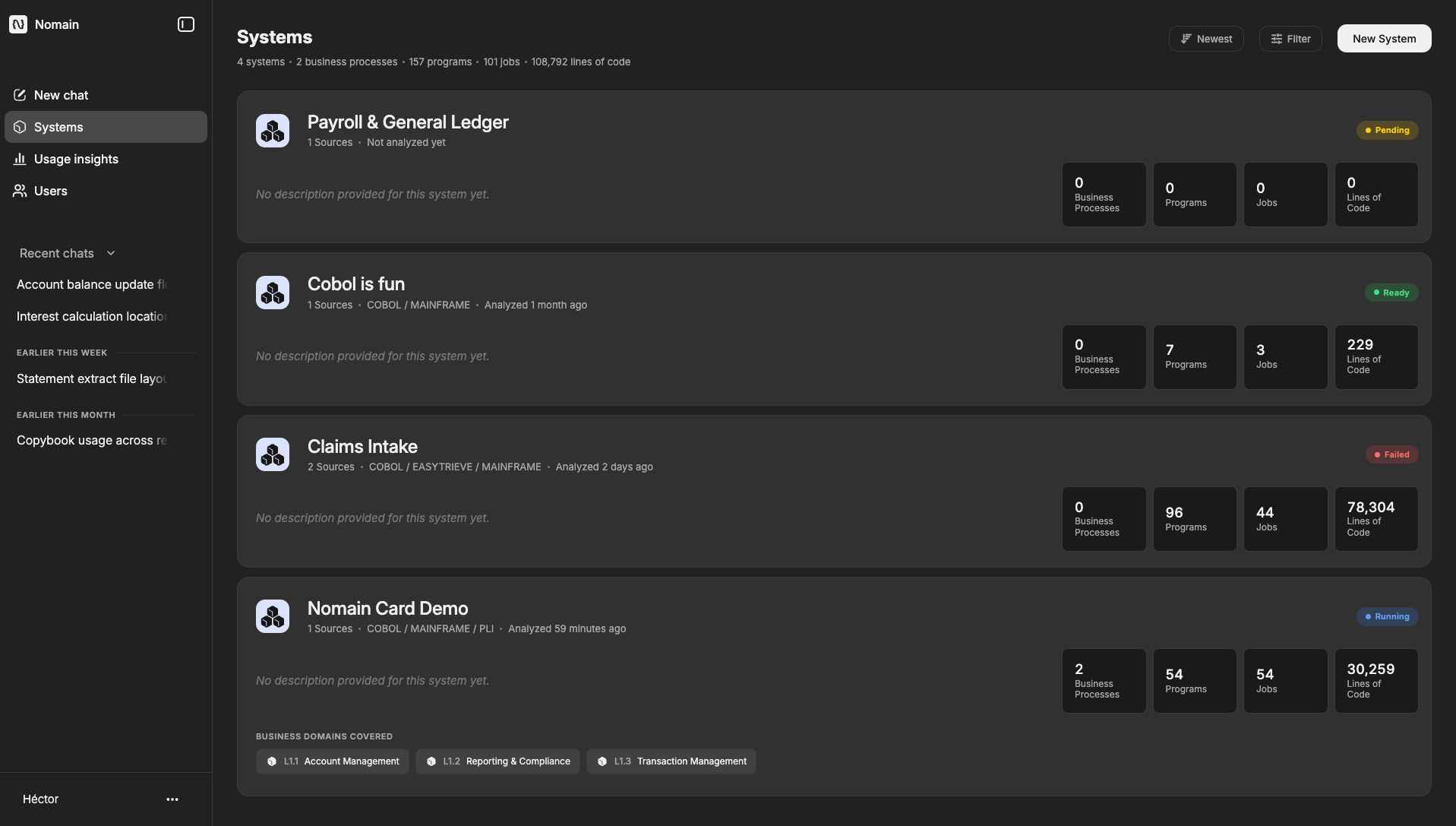
Each System card shows the shape of a System at a glance:
- The System name, and how many sources (repositories) and programming languages it is built from.
- A status badge (see below).
- An optional description.
- Four headline numbers: Business Processes, Programs, Jobs, and Lines of Code, all from the latest analysis.
- The date it was last analyzed, with the exact time shown on hover.
- A "Business domains covered" row of tagged chips (for example Account Management or Reporting & Compliance), so you can see which part of the business the System covers without opening it.
Click a card to open the System's detail page.
Archived Systems
Systems you have retired are archived and hidden from the list by default, and the totals at the top exclude them. When any archived Systems exist, a Show archived toggle appears; turn it on to bring them back into the list and totals.
System status
A System always has a status, shown as a badge:
ReadyRunningPendingFailedArchived
The status follows the System's actual analysis runs, so it updates on its own when a run starts, finishes, or fails, including runs started elsewhere, for example by the auto-analysis schedule.
| Status | Meaning |
|---|---|
| Ready | The last analysis completed; the System is ready to explore and chat with. |
| Running | An analysis is currently in progress. |
| Queued | An analysis has been submitted and is waiting for a worker to pick it up. |
| Pending | The System has not been analyzed yet. |
| Failed | The last analysis did not complete. It can be re-run. |
| Degraded | The last analysis finished, but a meaningful share of one step's work did not complete. The affected step can be retried on its own. |
| Cancelled | The last analysis was cancelled before it finished. |
| Archived | The System is retired (read-only). |
The System detail page
Opening a System takes you to its detail page, which has two tabs, Analysis logs and Document management, and a strip of statistics at the top.
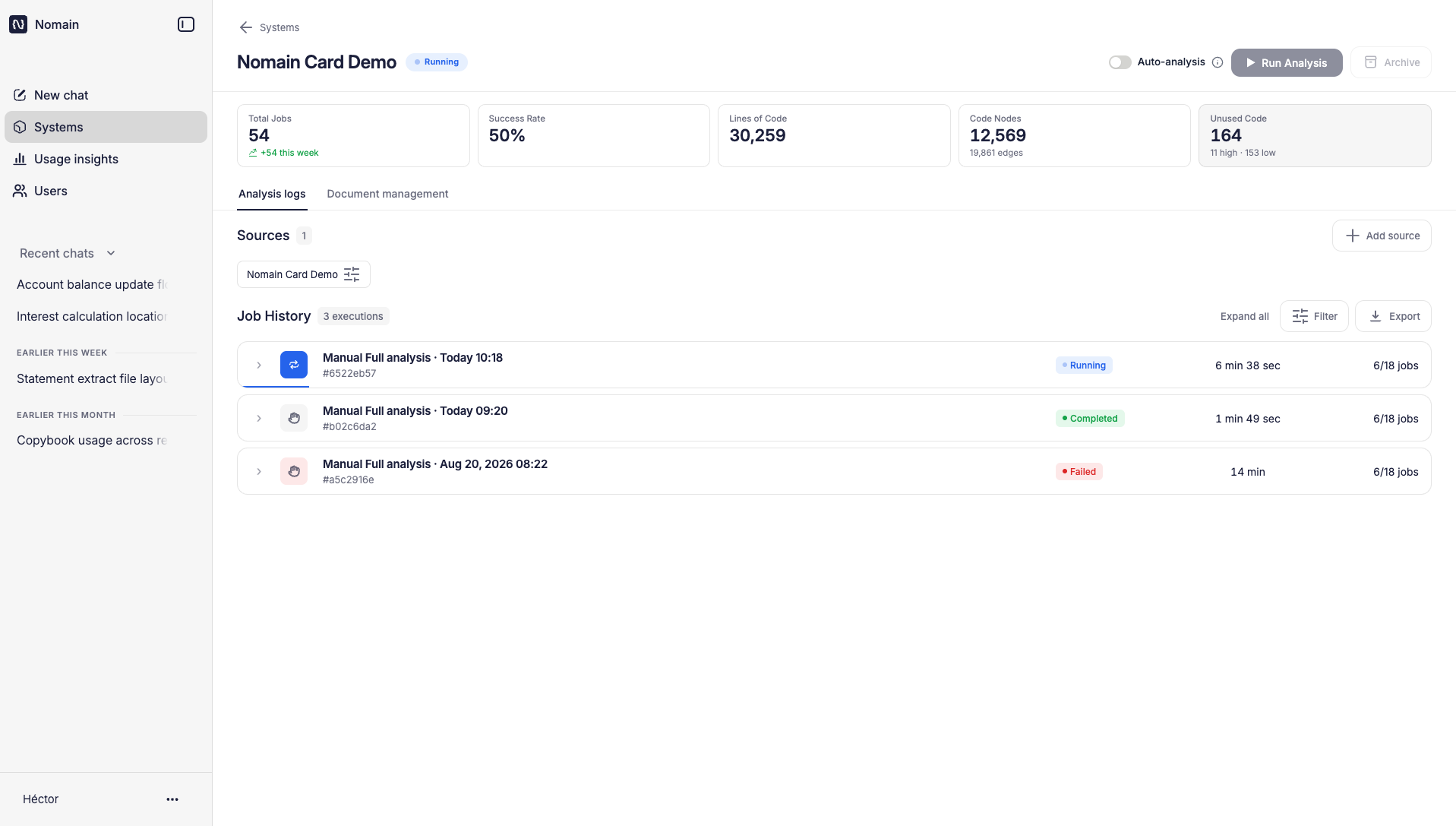
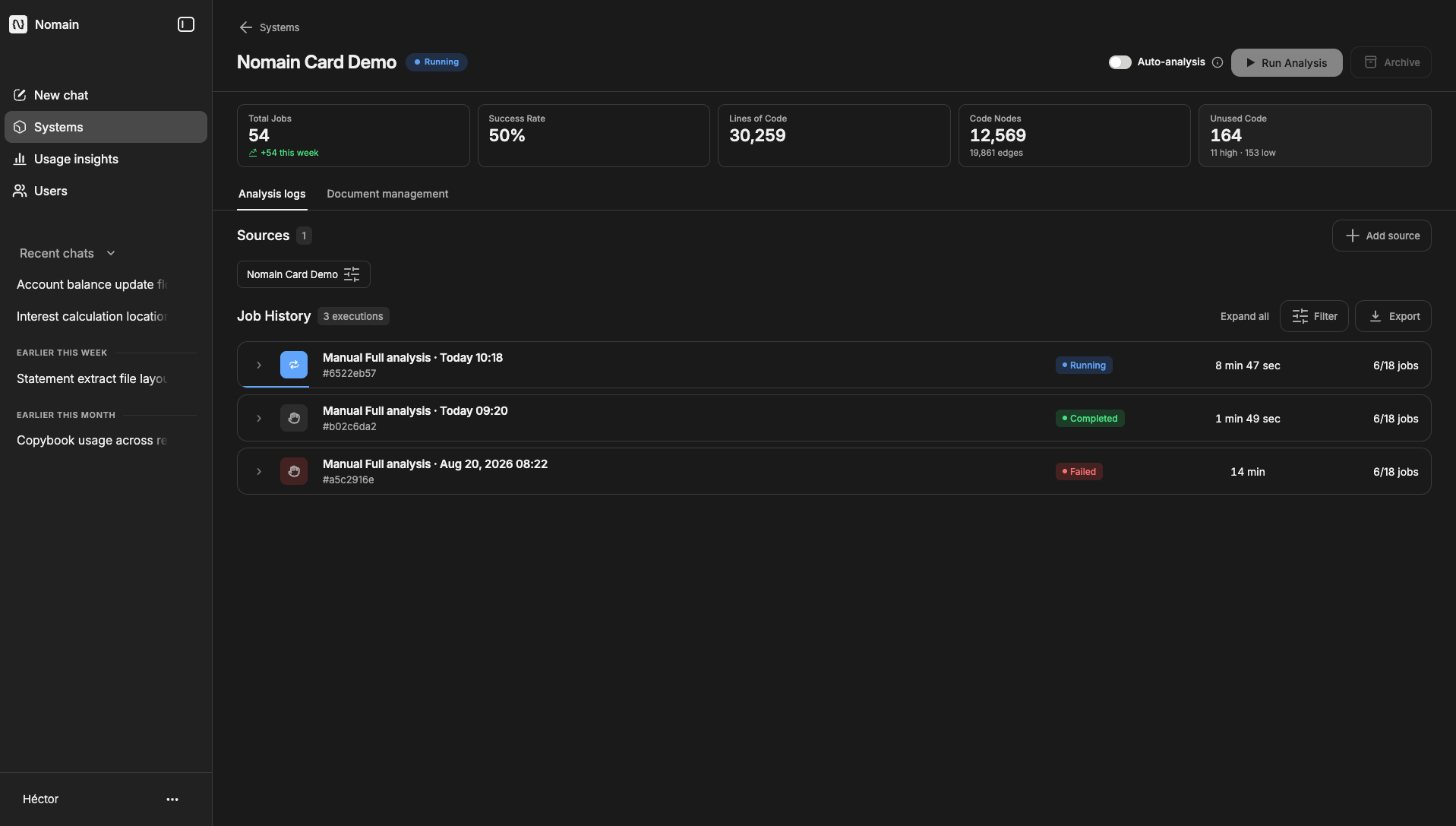
Execution statistics
The statistics strip summarizes the System from its whole analysis history:
- Total Jobs run all-time, with a "+N this week" indicator.
- Success Rate, with how it has moved vs last month.
- Lines of Code.
- Code Nodes, with the number of connections (edges) between them.
- Unused Code, code that appears to be unused (see dead-code detection).
Job history
Under Analysis logs, the Job History table lists each analysis run (execution) with its status, duration, trigger (Scheduled or Manual), and progress. You can expand a run to see its individual steps, filter by status or trigger, expand or collapse all, and export the history to CSV. This is covered in detail under Running system analysis.
Creating and archiving a System
Administrator actions
Creating a System, running or scheduling analysis, adding sources, and archiving are available to tenant administrators only. Anyone can browse Systems, read job history, and open detail pages.
To create a System, an administrator clicks New System on the Systems page, chooses one or more repositories, names the System, optionally sets path filters, and clicks Create. Systems can also be created automatically when repositories are added through integrations.
To archive a System, an administrator clicks Archive on the detail page and confirms. Archiving:
- Blocks new chats and re-analysis for that System.
- Keeps existing chats readable.
- Cannot be undone.
What a System connects to
- Repositories & sources: where the code comes from.
- Business domains & processes: the business-level view of the same System.
- Chat: asking questions about the System.
- The System map: exploring it visually.
- Document management: attaching your own documentation.
A word about "jobs"
The word jobs appears in two places with different meanings. On a System card, Jobs counts the batch jobs (e.g. JCL jobs) found in your code. In the Job History table, "jobs" means the individual steps of an analysis run. The context makes clear which one is meant.