

Appearance
Running system analysis
Admin only
Every System in Nomain is built by an analysis run over its source code, jobs, copybooks and documents. Analysis turns raw code into the structured, explorable model you chat with and navigate. As a tenant administrator, you control when a System is analyzed or re-analyzed, and you can watch each run's progress.
What an analysis does
A single run reads the code and builds the System's model step by step. It downloads the code, builds its structure, applies AI-assisted parsing where needed, classifies and summarizes attached documents, writes plain-language explanations of each part and refines them, extracts business-process models, and links those processes back to the code.
Starting a run
From a System's detail page, click Run Analysis to open the analysis menu:
| Action | What it does |
|---|---|
| Re-analyze | An incremental run that reprocesses only what changed since the last run, so it is faster. |
| Full re-analysis | Reprocesses the entire System from scratch, regardless of what changed. |
| Dead Code (Incremental) | Detects unused code, processing only what changed. |
| Dead Code (Full) | Detects unused code across the whole System. |
A confirmation appears (for example "Re-analysis started."). If a run is already in progress, you are told "Analysis is already in progress. Please try again later."
When you can run
Run Analysis is available whenever the System has settled, for example Ready, Failed, Degraded or Cancelled. You cannot start a new run while one is already Running or still Queued for a worker.
Scheduling automatic re-analysis
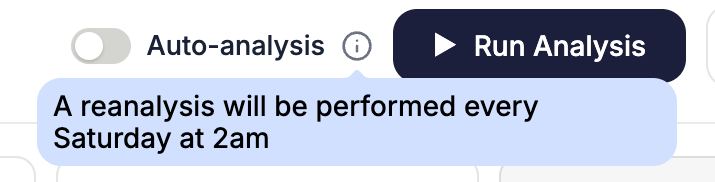
Turn on the Auto-analysis toggle to schedule an automatic re-analysis every Saturday at 2am. Runs it triggers are labelled Scheduled; runs you start yourself are labelled Manual. Turn the toggle off to stop the schedule.
Following progress
A running execution shows a progress bar and a live count such as "3/10 jobs", which reports how many of the run's steps have started or finished out of the total. While it works, the System's status badge reads Running. The fraction settles on the final total (for example "10 jobs") once every step has run.
A run that is still waiting for a worker to pick it up shows as Queued rather than Running (and so does an individual step in that position), so Running always means work is actually happening. There is no need to reload the page to follow along: the job history refreshes automatically while an analysis runs, and the System's status badge follows its actual runs, updating on its own even when an analysis is started elsewhere (for example, by the schedule).
Job history
The Job History section on the detail page lists each run as a single expandable row (for example "Scheduled Incremental analysis · Today 09:15") with its status, duration, and job count.
- Expand a run (or use Expand all / Collapse all) to see its individual steps.
- Filter by Status (Completed, Running, Queued, Failed, Pending, Waiting, Cancelled, Degraded) and by Trigger (Scheduled or Manual).
- Export the run history to CSV.
Click any step to open a side panel showing its Timing, Parameters, and Job Log.
Retrying a step
If a single step fails, or ends Degraded because a meaningful share of its work did not complete, you can Retry step from its side panel to re-queue just that one step and resume the run from there, instead of restarting the whole analysis. The retry can be Incremental, which skips work already completed and retries only what is left, or Full, which re-runs the entire step from scratch. A confirmation notes "Step re-queued. The recipe will resume from it."
When a step fails, the message shown in its panel is the actual cause of the failure, including when the AI service was temporarily throttling requests, so you can tell whether a retry is likely to help.
Cancelling a run
While a run is in progress, open the running step's side panel and use Cancel execution (next to Running for; a step still waiting for a worker offers the same button next to In queue for). Cancelling stops the whole run: the status becomes Cancelled immediately, steps that have not started never will, and the step currently running is asked to stop; an AI step stops issuing model requests within about 15 seconds. That step keeps showing as Running for a few more moments until the worker confirms it has actually stopped, at which point it too reads Cancelled in the job history.
Reliability during a run
Interruptions surface as visible outcomes, not stuck runs. Steps in flight during a service restart are handed back and resumed by another worker; the most expensive AI steps instead stop with a clear failure reason and can be retried. A step whose completion could not be delivered fails within seconds with a clear reason rather than showing as Running forever, and throttled AI calls are detected and retried, so a step is never marked Completed without a real result.
Secret scanning
When a source has secret scanning enabled, a ScanSecrets step runs between downloading the code and parsing it: it scans the stored code for committed secrets and masks any it finds before analysis continues. A finding does not fail the run: the step ends with the Alert status (an orange badge), which is terminal but non-blocking, so the rest of the analysis proceeds. Each finding is listed in the step's Job Log as rule: file:line, never the secret value. Separately, a step where a meaningful share of the work fails ends as Degraded (an amber badge), likewise terminal and non-blocking: the analysis continues, and the step can be retried on its own.
Dead-code detection
The Dead Code analysis actions flag code that appears to be unused. The result feeds the Unused Code figure in the System's statistics strip and the Dead Code Analysis tab in node details.
Related
- Systems: the model analysis produces, and its status lifecycle.
- Repositories & sources: the code analysis reads.
- Document management: uploaded documents are picked up on the next run.