

Appearance
Agent memory
Memory is what the Nomain assistant remembers about you across all of your chats. As you talk with it, the assistant quietly records durable facts: who you are, how you like to work, the projects you are dealing with, and pointers to resources you rely on. This means it does not have to relearn them in every new conversation.
You do not write these notes by hand. The assistant creates them for you during chat. The Memory screen lets you see everything it has remembered, read any note in full, edit it, or delete anything you would rather it forget.
Private to you
Memory is strictly per-user. Only you can see your own memories, and the assistant is designed to record only durable, reusable facts you volunteered, not transient details, secrets, or personal information.
Opening Memory
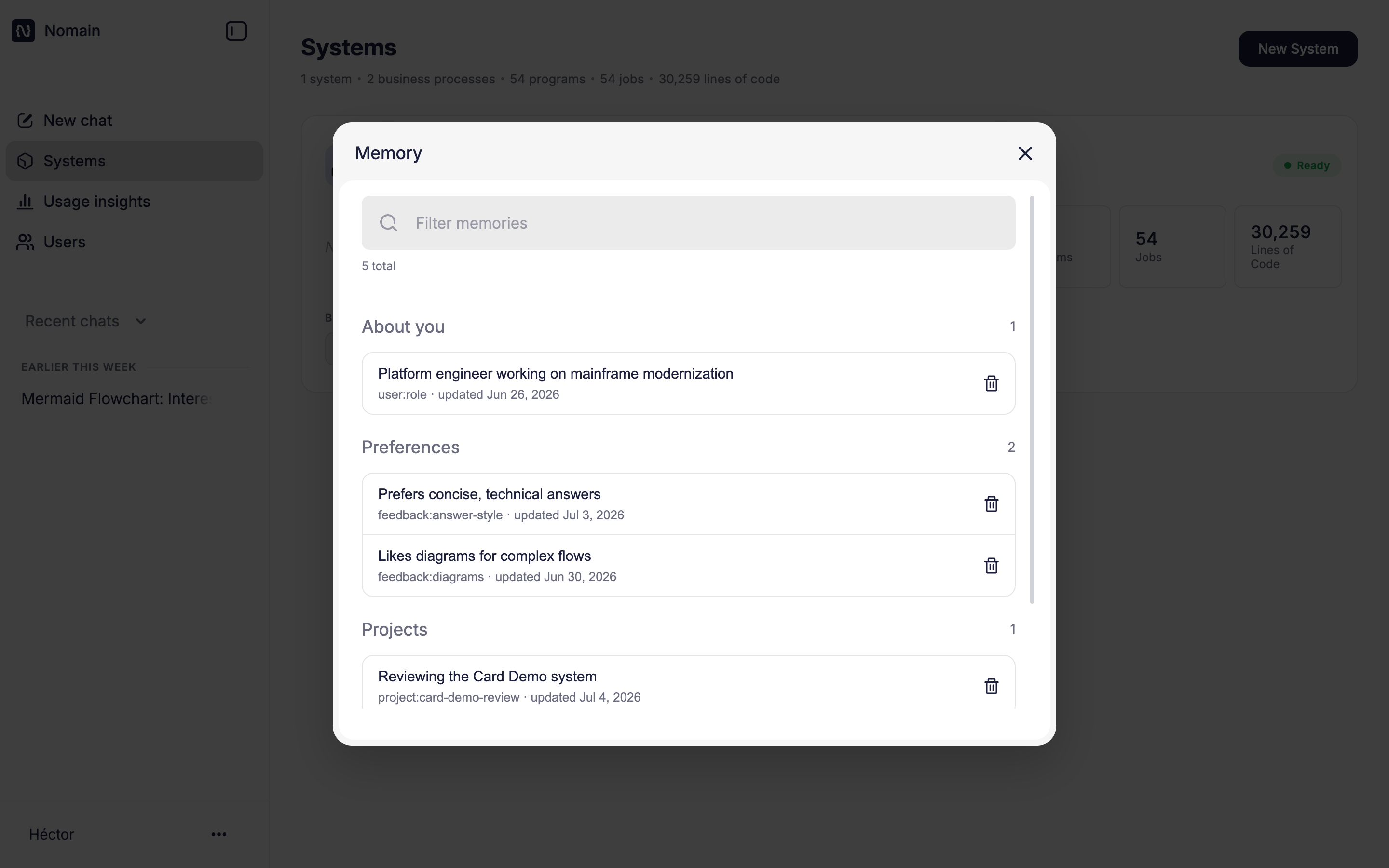
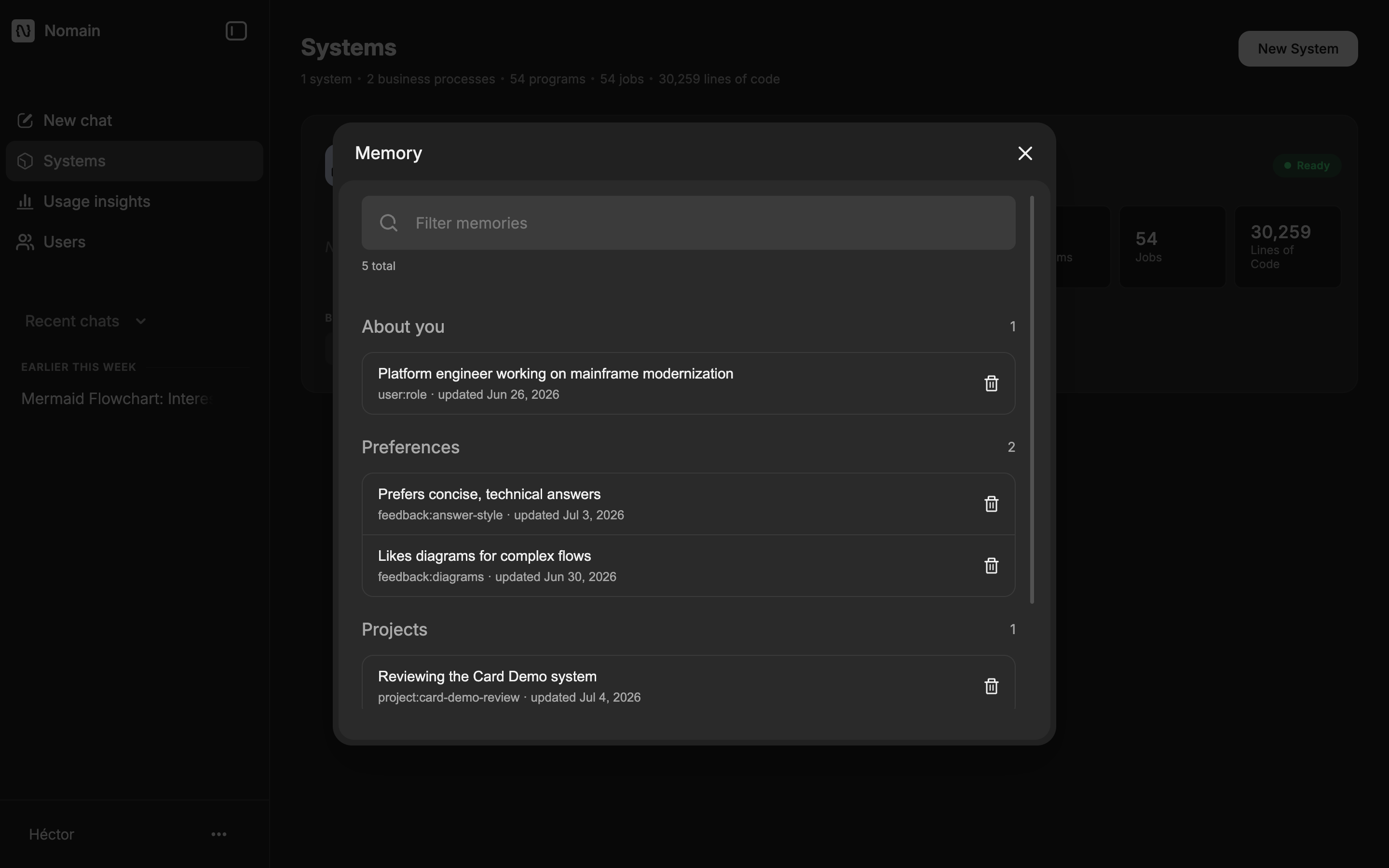
Open the Memory screen from the user menu at the bottom-left of the app. Memories are grouped into four categories, with a filter box for jumping straight to what you want.
| Category | What it holds |
|---|---|
| About you | Who you are: your identity and role. |
| Preferences | How you want the assistant to work with you: your style and preferences. |
| Projects | Ongoing work, decisions, and constraints you are dealing with. |
| References | Pointers to external resources you rely on. |
Each memory shows a short one-line summary and when it was last updated. The list is ordered most-recently-updated first, so after you edit a memory it floats to the top of its section.
Reviewing, editing and deleting
- Filter: type in the Filter memories box to narrow the list; it matches on the memory's summary. A counter shows how many are shown out of the total.
- Open: click a memory row to open it. The editor shows its category, a Summary field (the one-line description), and a Content field (the full text the assistant will recall).
- Edit: change the summary or content and click Save. Save stays disabled until you have actually made a change. Click Cancel to close without saving.
- Delete: click the trash icon on a row. A Delete memory? confirmation appears; confirm with Delete. A "Memory deleted" message confirms success.
If you have no memories yet, the screen shows "No memories yet" and explains that memories appear as you chat.
Memory is created by the assistant, not by you
There is no "add memory" button. Memories accumulate naturally from your conversations. The Memory screen is where you curate them: review what has been captured and remove anything you don't want kept.
If you want Nomain to remember something, just say so in chat with a cue like "My preference is...", "Remember that...", or "Memorize this...", and the assistant will note it down for next time.
Availability
Memory is governed by a deployment setting (on by default). Where a deployment has memory turned off, the Memory menu item does not appear.
Related
- Chat: where memories are created.
- A tour of the app: where to find the user menu.