

Appearance
Nomain for VS Code
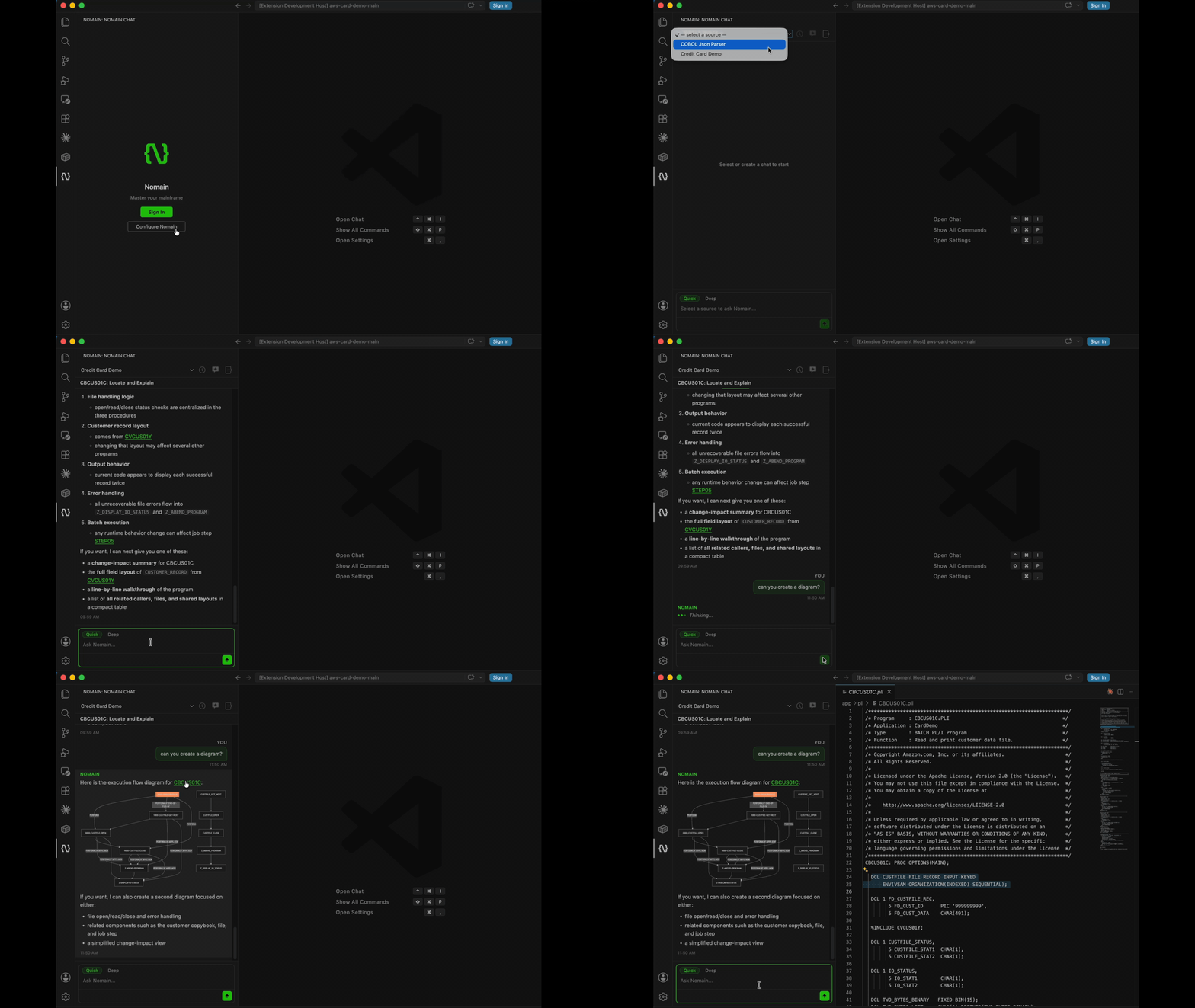
Nomain for VS Code brings Nomain's chat into your editor, so you can ask questions about your code without leaving VS Code. It adds a Nomain panel to the sidebar where you pick one of your Systems and have a conversation about it, just like the web app.
Answers stream in live and can include clickable code references that jump you straight to the right file and line in your open project. Because the extension talks to the same Nomain backend as the web app, a conversation you start in the browser keeps generating and shows up in the editor, and the reverse also holds.
The extension is also growing beyond chat: Nomain Code, a coding agent that proposes edits to your code, is rolling out to selected users.
Requirements
- VS Code 1.100 or later.
- A Nomain account with access to at least one System.
Getting started
- Install the Nomain extension from the VS Code Marketplace, then click the Nomain icon in the Activity Bar to open the panel.
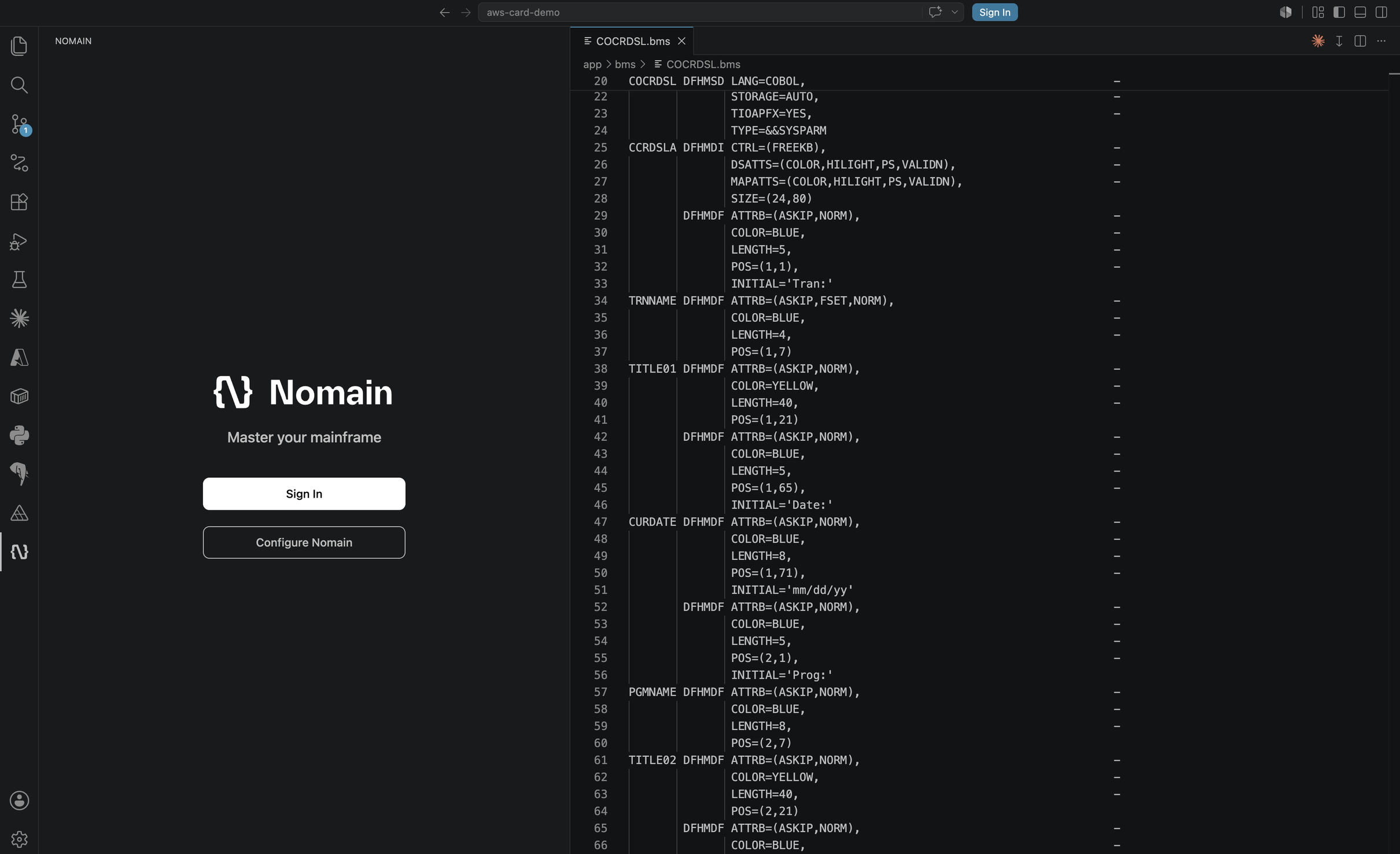
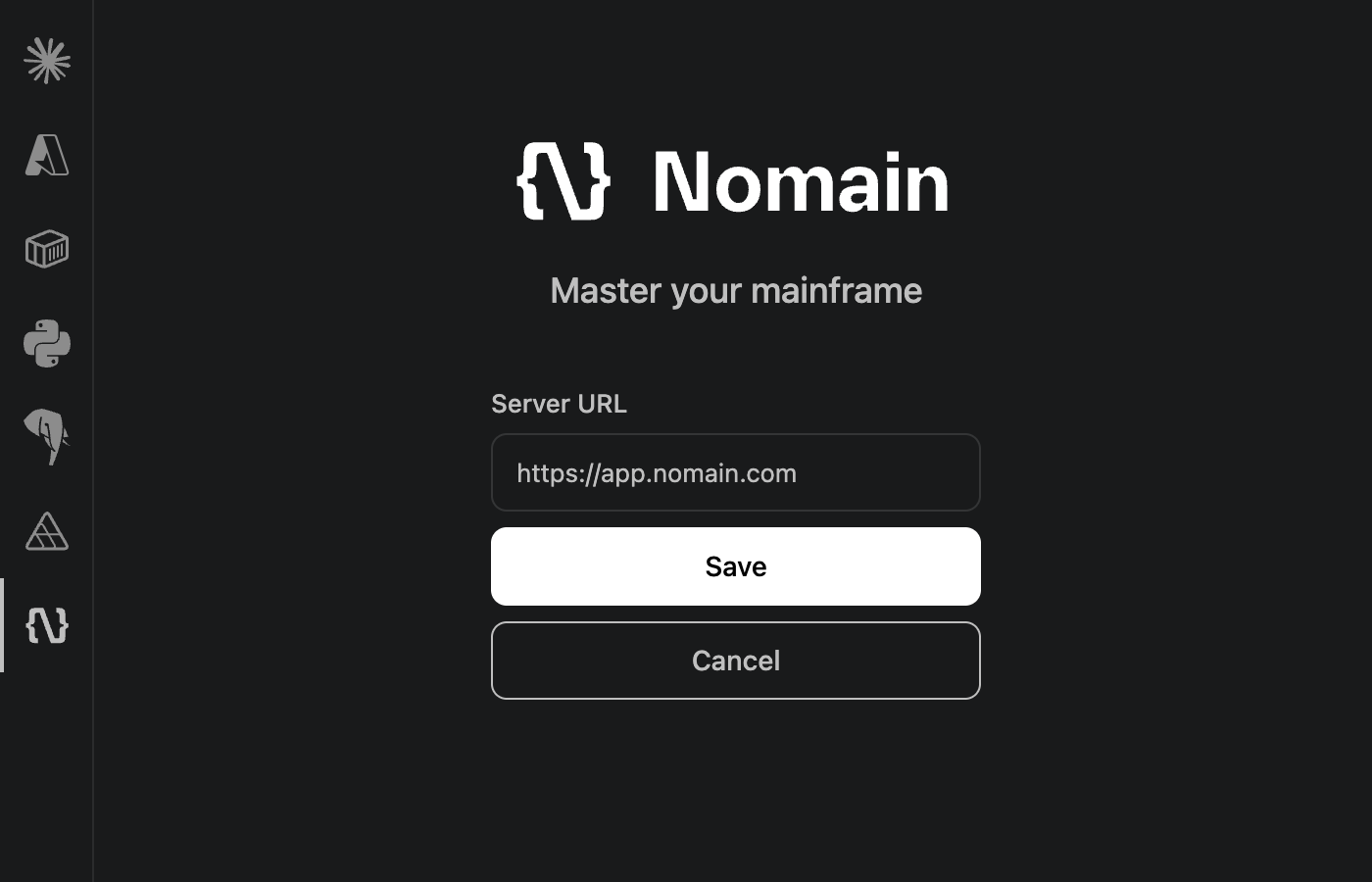
- Set your server URL. On the sign-in screen, click Configure Nomain. An inline Server URL editor opens with a text box, Save, and Cancel. Enter your Nomain address. It must start with
http://orhttps://(a barelocalhost:4200with no scheme is rejected). Press Save. - Sign in. Click Sign In (or run Nomain: Sign In from the Command Palette). Your web browser opens to confirm a short sign-in code; once done you see "Signed in to Nomain."
- Pick a System from the Select a system dropdown at the top of the panel. The message box stays disabled ("Select a system to ask Nomain") until you choose one.
Changing the server URL
You can only change the server URL while signed out. The extension will tell you to "sign out to change the server URL."
Chatting in the editor
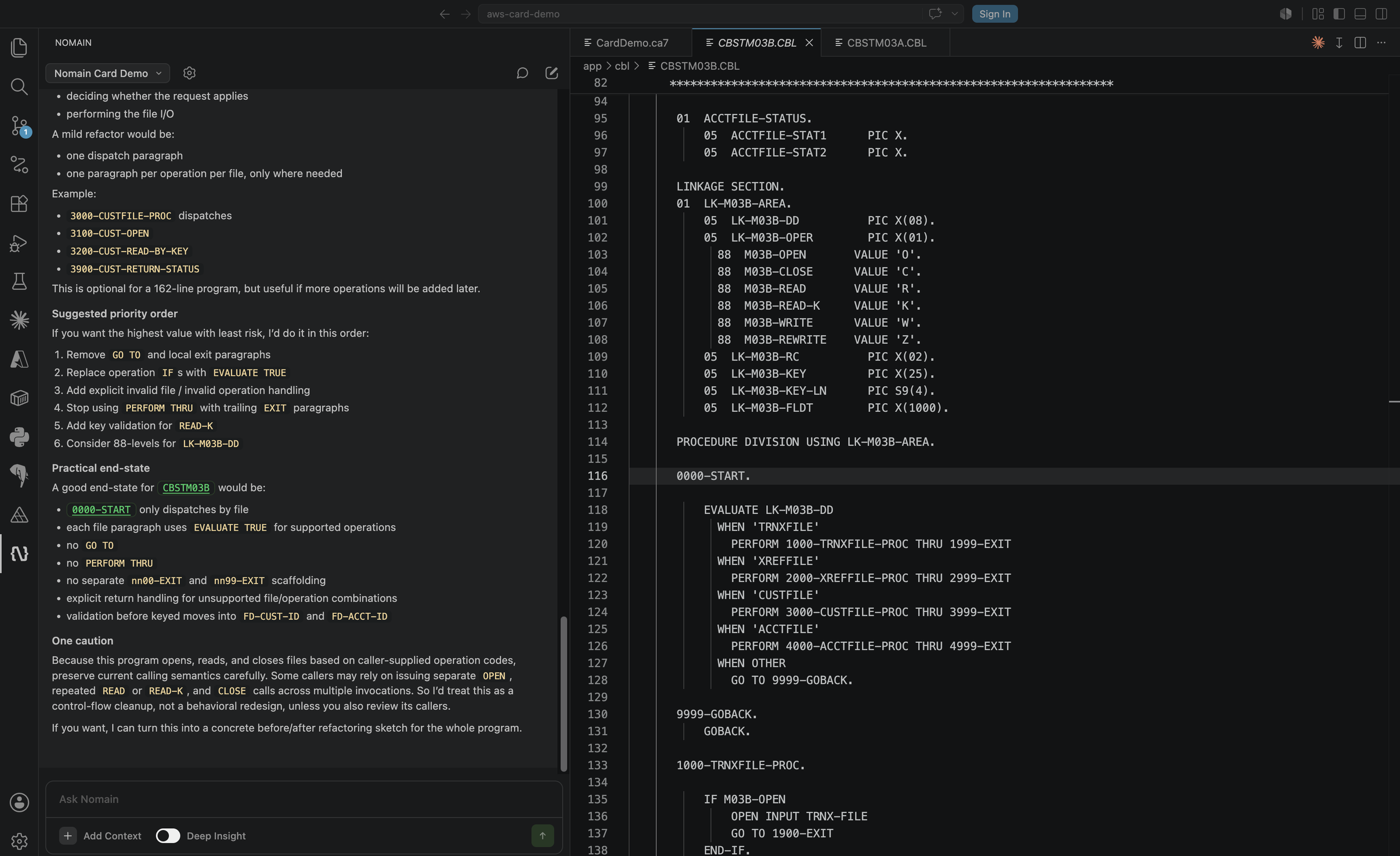
- Type your question in the Ask Nomain box and press Enter to send (Cmd/Ctrl+Enter or Shift+Enter inserts a newline).
- Turn on Deep Insight before sending for a slower, more thorough answer.
- Add context: click Add Context to search your workspace files and attach one, or highlight code in the editor and press Alt+K (Option+K on Mac) to add that file and selection. Attached items show as removable chips.
- Jump to code: click any inline code reference in an answer to open that source file at the exact line. If the file isn't in your workspace, you see "File not found in workspace."
- Start a new chat with the New chat button (you name it and choose its System); revisit past chats with the Chat history button.
- Stop a generating answer with Esc Esc or the stop button; it shows as Interrupted.
Answers render Markdown and Mermaid diagrams, exactly as in the web app.
Nomain Code
Rolling out
Nomain Code is rolling out to selected users first, with wider availability planned in coming releases. When it is enabled for your deployment, it appears in the extension's chat automatically.
Nomain Code grows the chat into a coding agent. Ask for a change and it plans the work, reads the relevant code, and proposes edits grounded in Nomain's knowledge of your analyzed Systems. When it needs deeper answers about how your code fits together, it can consult the Nomain analysis agent.
- You review every change. Proposed edits go through an edit review where you accept or reject them file by file and hunk by hunk. You get a warning when an edit touches a copybook that is used elsewhere, and if a file changed underneath a pending edit, that edit is not applied.
- Commands are off by default. Running commands can be turned on, and even then every command needs your explicit approval before it runs.
- Edits respect your files. Changes are applied with each file's own line endings and follow VS Code's encoding setting for non-UTF-8 sources.
- Built for long sessions. Long conversations are compacted to fit the model's window, and brief service throttles are retried automatically.
- Private by design. Model calls are made server-side through your Nomain deployment, never directly from your editor to an AI provider. Agent activity is audit-logged in the same event format as the rest of the platform, without recording your question text. Local session logs stay off unless you turn them on, and even then they exclude code fetched from repositories outside your local checkout.
Command Palette
The extension registers these commands:
- Nomain: Sign In / Nomain: Sign Out
- Nomain: Configure Server URL
- Nomain: Send Feedback
- Nomain: Add Selection to Chat Context
- Nomain: Cancel In-Flight Query
Streaming parity with the web app
Streaming and reconnect behave the same as the web app. Opening a chat whose answer is still being generated, even one you started in the browser, reconnects to the live stream and keeps showing it. See Chat.