

Appearance
Shared chats
Share a chat with colleagues in your organization to work on a question together. Everyone with access reads the same conversation and writes in it. A message is a reply to the people in the chat, and Nomain answers the messages that mention it.
When a shared chat helps
A shared chat fits work where several people need the same answers from the code and need to agree on what they mean.
- Refining a feature or a user story. A subject matter expert, a business analyst and the developers work in one chat. One person asks Nomain how the System handles the case today. The others reply with what they know and what the story must cover, and the next prompt builds on those replies. Everyone leaves with the same description of today's behavior and of the change.
- Resolving an incident. The team gathers in one chat to triage. People reply with what they observe, ask Nomain where the failing behavior comes from and what depends on it, and work out the fix together. A colleague who joins later reads the whole conversation, with who wrote each message.
When the work is done, choose Export as PDF in the More tools menu to keep the result with the story or the incident record.
Sharing a chat
- Open the chat and click More tools (the three dots in the chat header).
- Choose Share. The Share conversation window opens.
- Type the exact email address of a colleague. To invite several people, separate the addresses with a space or a comma.
- Click Invite.
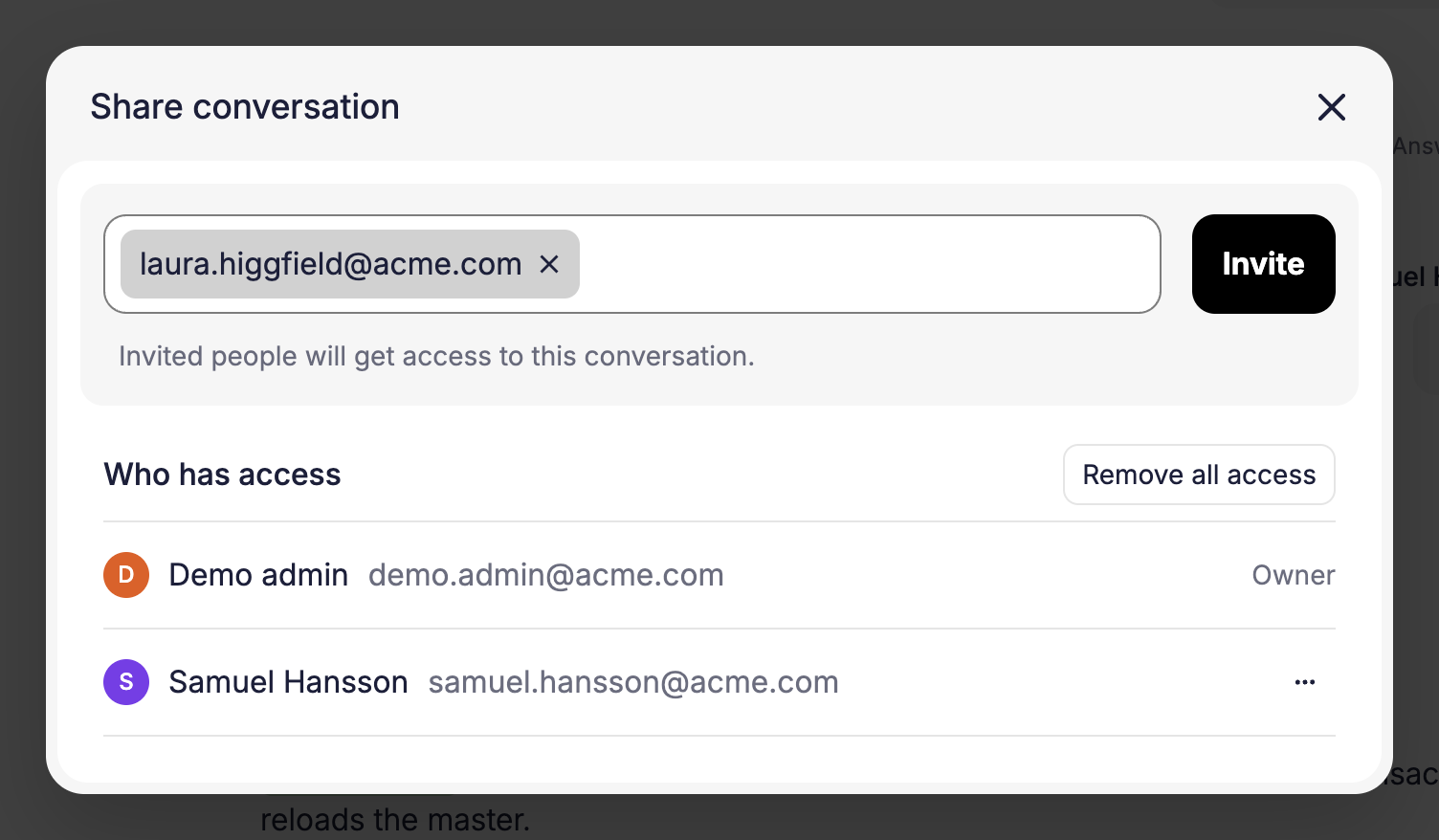
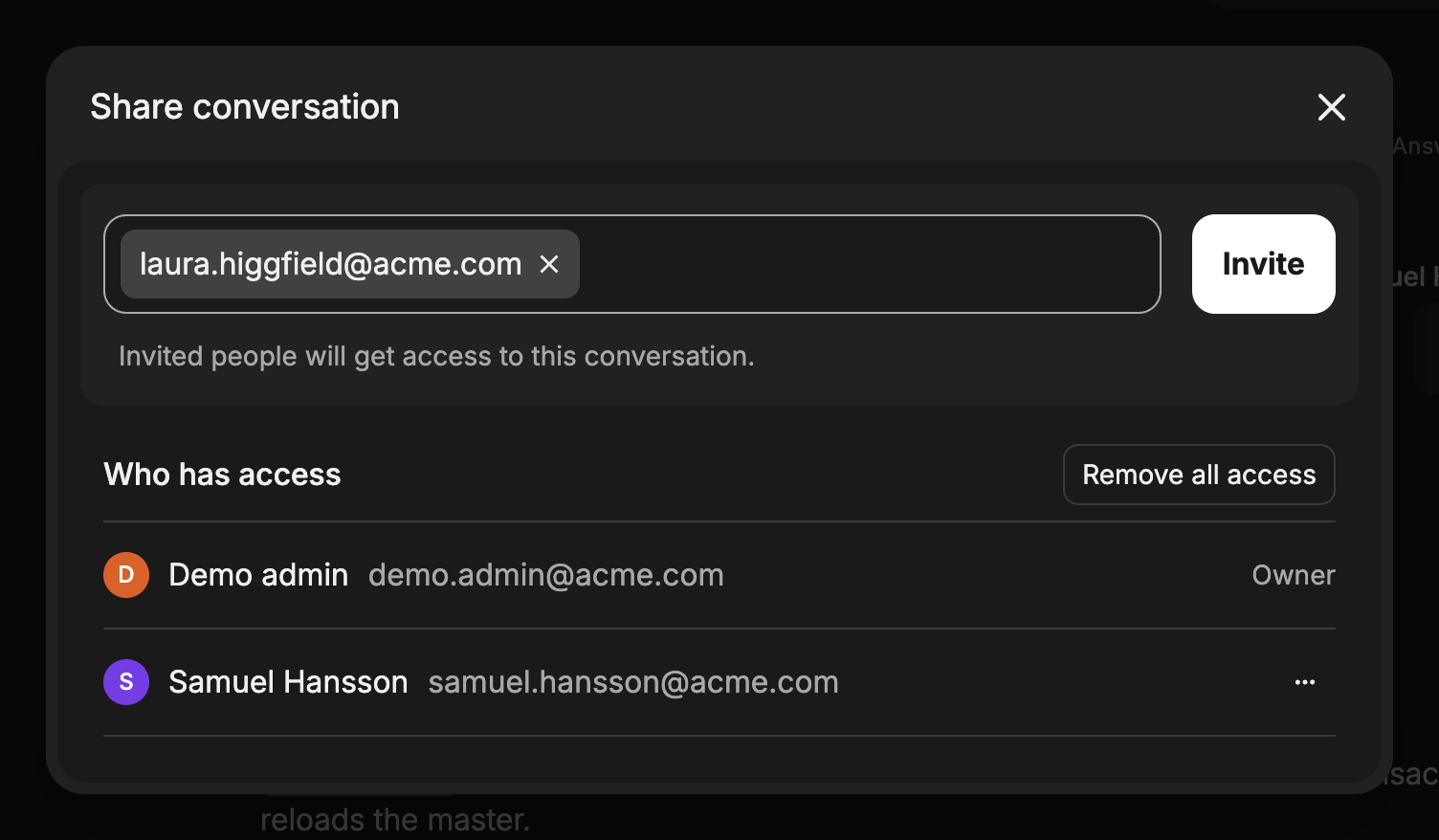
Who has access lists everyone in the chat, with you first as Owner.
Who you can invite:
- People in your organization. An address that matches nobody gets "No colleague with that email address."
- People who can use the System the chat is about. For anyone else the chat is not shared, and the window says so: "This person cannot use the System this chat is about, so the chat was not shared."
- Up to 20 people per chat.
Only a chat about one System can be shared.
Removing access
In Share conversation, open the ⋯ menu beside a person and choose Remove access. Remove all access removes everyone at once, after a confirmation. The chat stays yours, with the whole conversation.
Finding shared chats
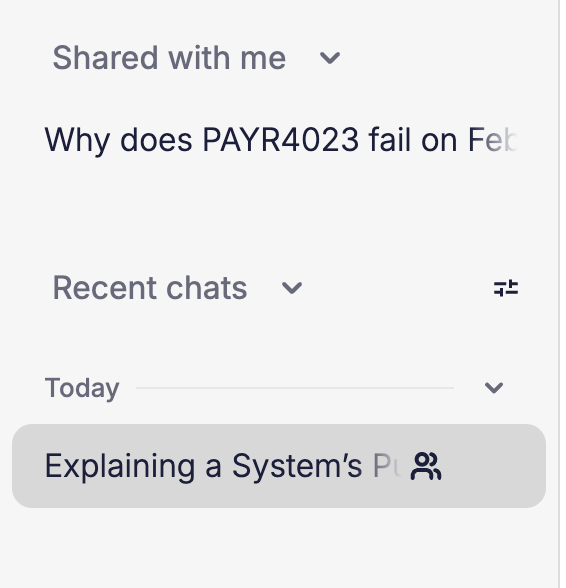
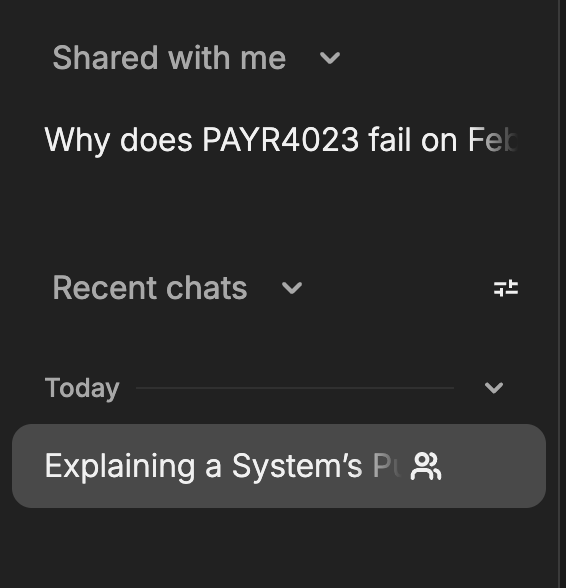
- A chat that a colleague shared with you appears under Shared with me in the sidebar, above Recent chats. Its header says who shared it, for example Shared by Samuel Hansson.
- A chat that you shared stays in your own list, marked with a people icon.
You see a shared chat only while you can use its System. If an administrator removes your access to that System, the chat leaves your Shared with me list.
Working in a shared chat
In a chat that is shared with someone, people write to each other. A message is one of two kinds:
| Kind | Who it is for | Nomain answers |
|---|---|---|
| Reply | The people in the chat | No |
| Prompt | Nomain | Yes |
A message is a reply unless it mentions Nomain. The message box says so: "Reply, or mention @Nomain to ask".
Asking Nomain
Mention Nomain anywhere in the message, in any letter case:
ok, this clarifies the question, @Nomain search the dependencies again
There are three ways to do it:
- Type
@. A list opens with Nomain and the people in the chat. Choose with the arrow keys and Enter. - Choose Prompt above the message box. Nomain adds the mention for you. Choosing Reply removes it.
- Start the message with a slash command. Such a message is for Nomain without a mention.
Reply and Prompt above the message box always show the kind of the message you are writing.
Files are read by Nomain, so a message with files mentions Nomain. When you attach one, a line says so: "Files are read by Nomain, so this message mentions @Nomain."
If a reply ends with a question mark and does not mention Nomain, a line reminds you: "Nomain answers when you mention it: @Nomain".
Replying to colleagues
Write the message and send it. Nomain does not answer a reply, but it reads the replies as part of the conversation and knows who wrote each one. An answer can therefore build on what a colleague said.
To address a person, type @ and choose their name. The name is marked in the message, and it stands out for that person when they read it. That person also gets a notification.
One answer at a time
Nomain answers one prompt at a time:
- While it answers a colleague, a line above the message box reads Nomain is answering followed by their name. You can still send a reply. A prompt waits until that answer is finished.
- While a colleague writes, a line reads, for example, Samuel Hansson is typing…
Reading the conversation
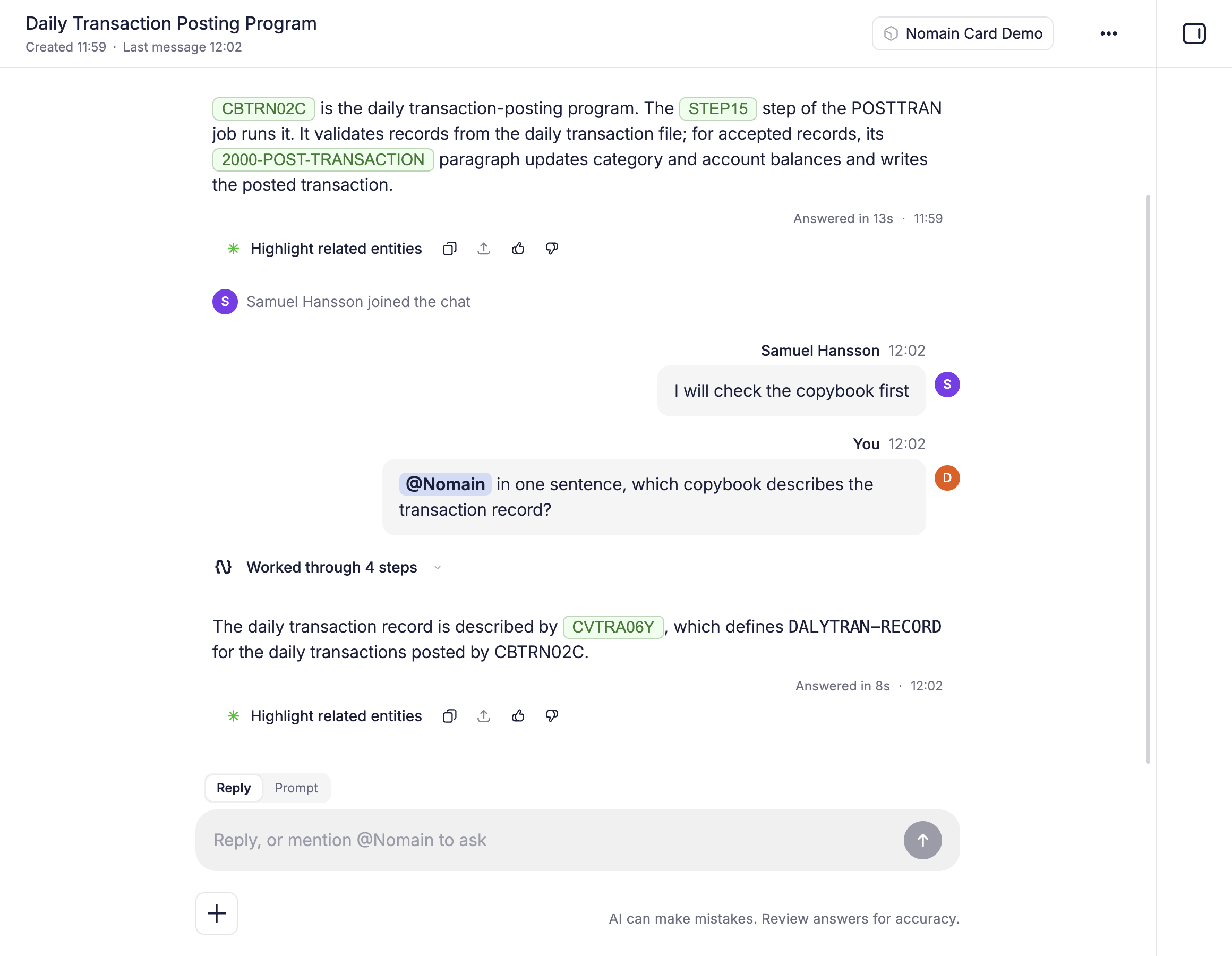
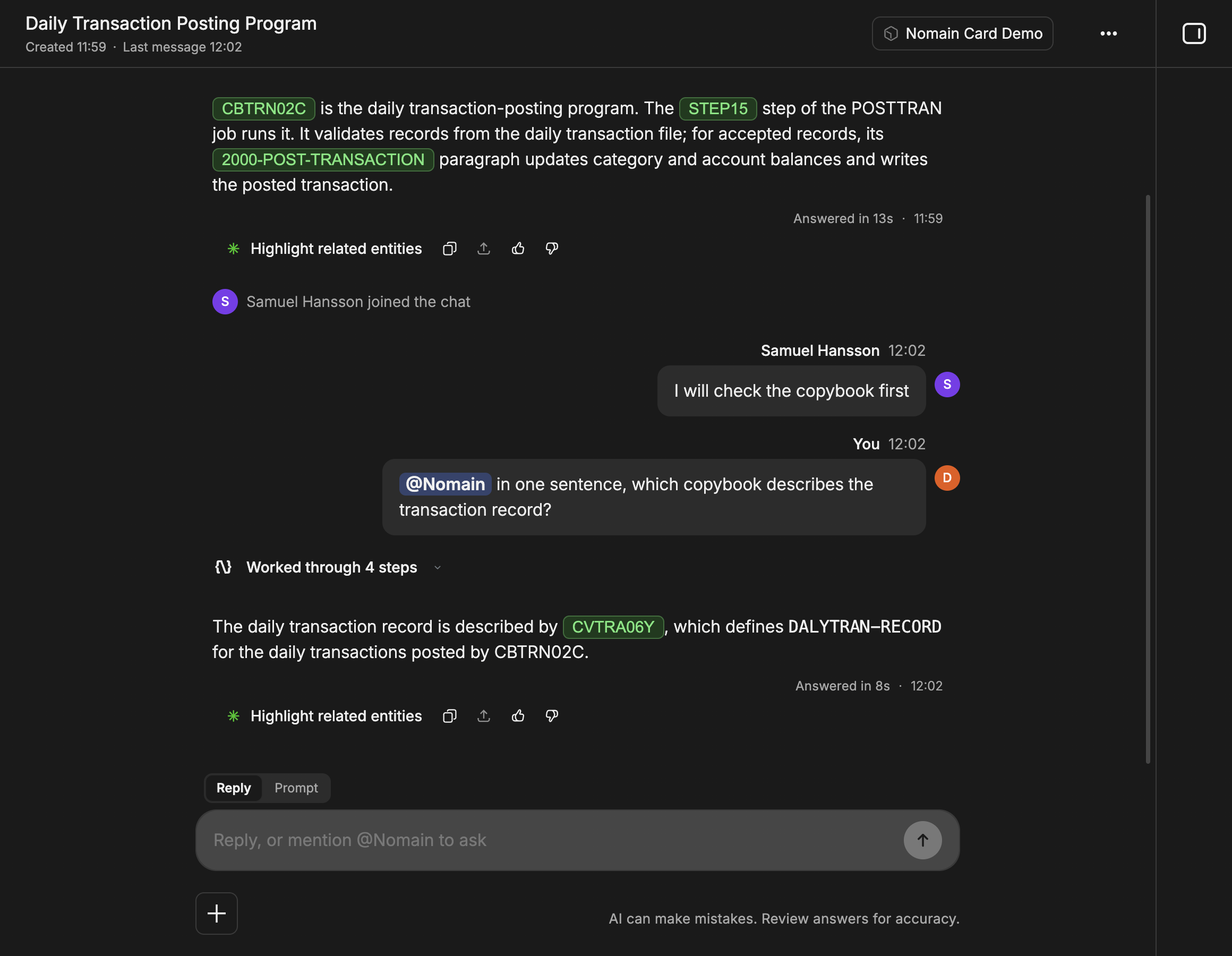
Each message shows the name and avatar of the person who wrote it. Your own messages are labeled You. Nomain knows who wrote each message and who owns the conversation, and takes that into account when it answers.
Short lines in the conversation record what happened in it: who joined the chat, who was removed from it, who left it and who exported it.
Export as PDF keeps this in the file. Each message carries the name of the person who wrote it, a reply to the other people is marked Reply, and the lines about who joined, was removed or left stand in their place.
When a chat is no longer shared
A chat that is shared with nobody works like any other chat: every message is a question to Nomain. This also applies after you remove everyone's access, or after everyone you invited has left.
Notifications
Nomain tells you what happens in your chats while you are doing something else.
| What happened | When you are told |
|---|---|
| A colleague shared a chat with you | At once. The chat also appears under Shared with me without a reload. |
| A colleague mentioned you | When the message is sent. One notification per message. |
| You no longer have access to a chat | When its owner removes you or deletes the chat. |
| Nomain answered your prompt, or could not finish the answer | When the answer ends. This also applies to chats that are not shared. |
You are never told about something you did yourself.
How you are told depends on where you are:
- On another page of Nomain: a short message appears at the top of the screen, with Open to go to the chat.
- With Nomain in the background: a browser notification, if you turned them on. Click it to open the chat.
- When you come back to Nomain: the same short message, for what happened while you were away and no browser notification told you.
- In the chat itself: nothing extra, since the conversation already shows it.
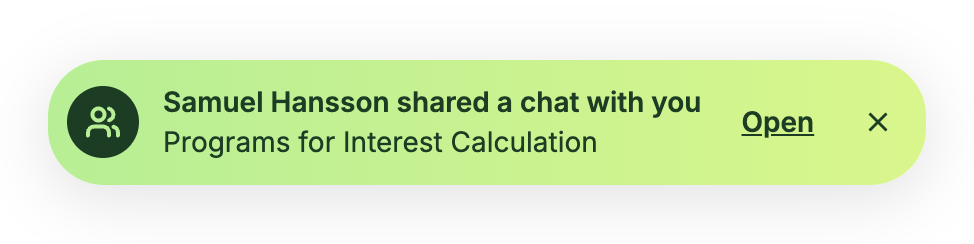
A notification shows the name of your colleague and the title of the chat. It never shows the text of a message.
Turning on browser notifications
- Open Profile and settings and choose Chat.
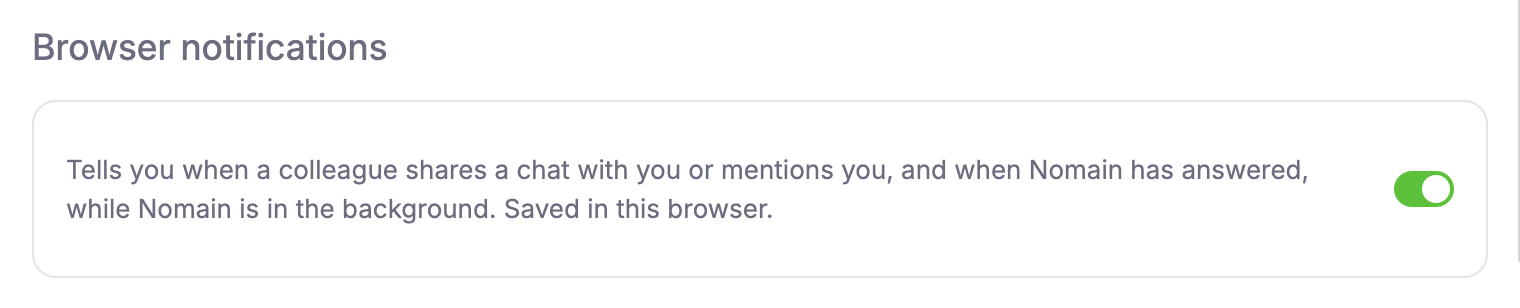
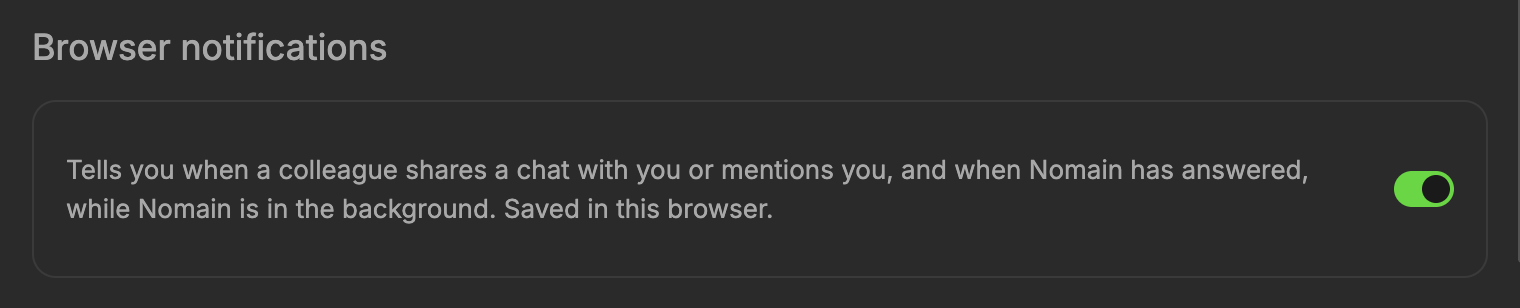
- Turn on Browser notifications.
- Allow notifications when the browser asks.
The first time you are in a shared chat, Nomain also offers this with Turn on.
Keep in mind:
- The setting is saved in the browser. Turn it on in each browser you use.
- If the browser blocks notifications from Nomain, the switch cannot be turned on. Allow notifications for Nomain in the browser's site settings first.
- Notifications reach you while Nomain is open in a tab. Nothing is delivered later for what happened while Nomain was closed, or before you reloaded the page.
- Your operating system can silence notifications, for example in a focus mode. Nomain cannot see that.
What each person can do
| Action | Owner | Invited person |
|---|---|---|
| Read the conversation, reply and ask Nomain | Yes | Yes |
| Export as PDF | Yes | Yes |
| Leave chat | No | Yes |
| Share, and remove people | Yes | No |
| Rename, Pin and Delete | Yes | No |
All of these are in the More tools menu.
- Leaving. An invited person can leave at any time: choose Leave chat and confirm. The chat leaves your list and stays with everyone else.
- Deleting. When the owner deletes a shared chat, it is removed for everyone.
- Rating the conversation. Only the owner sees the question "How is Nomain doing in this chat?"